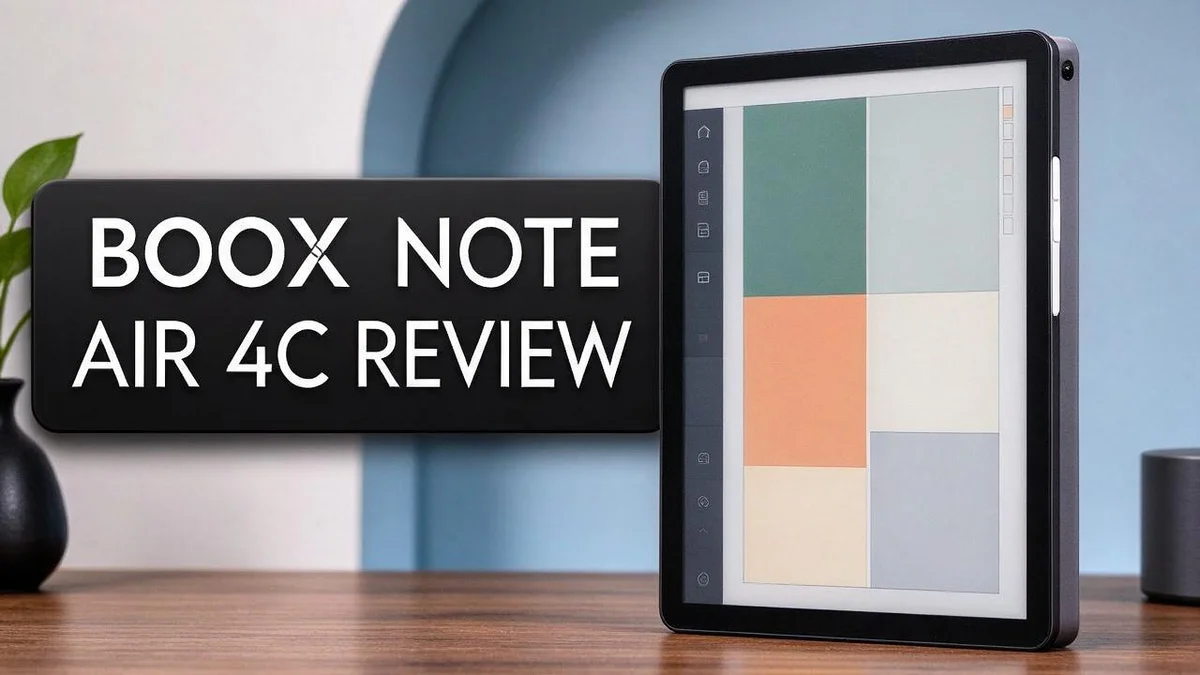
Boox Note Air 4C Review: Color E-Ink Tablet for Notes, PDFs and Reading
Are you looking for a tablet that feels more like paper? The Boox Note Air 4C might be the answer.
It packs a large color ePaper screen into a slim design. Reading and writing feel calm and easy on the eyes.
Many people want a device that helps them focus. This model is designed to minimize distractions.
Its Android interface feels familiar, so setup takes little time. You can take notes, read PDFs, and browse the web in one place.
Under the hood, you get an eight core processor, 6GB of RAM, and 64GB of storage. The 3,700mAh battery supports long study sessions and busy workdays.
In this review, we explore what the Note Air 4C does well. We also cover where it falls short, so you can decide if it fits your routine. Keep reading to see the full picture.
In a Nutshell
- Colors stand out on screen. The enhanced Kaleido 3 display shows vibrant colors, which helps with PDFs and web pages.
- Battery supports daily use. The 3,700mAh battery is built to handle regular note taking and reading.
- Reading and browsing work well. You can open documents and browse the web with ease.
- Arabic text may cause trouble. Some users report problems with Arabic text support, so test this first if you need it.
- Hardware needs a close check. Some owners report occasional hardware problems, and one user lost parts of handwritten notes. Back up your work often.
- Rivals are worth comparing. The Bigme B1051C also uses Kaleido 3, while the Boox Note Max often appears in r/eink discussions as a close comparison.
Display and Colour Performance

Last update on 2026-10-31 / Affiliate links / Images from Amazon Product Advertising API Some of the links on this website are affiliate links, which means that at no additional cost to you, I earn a commission if you click through and make a purchase. I only recommend products and services that I believe will add value to my readers. Thank you for your support!
Colour ePaper looks different from a regular tablet screen. It reflects light instead of glowing, so the page feels closer to real paper.
Many readers notice this difference within minutes. Text stays sharp, and colours sit softly on the page. That softness can feel calmer during long reading sessions.
Colours do not look as bright as a phone or LCD tablet. Think of them as a gentle, matte finish. Some people prefer this look, while others want more punch.
Charts and diagrams benefit most from colour. Graphs, maps, and labelled sketches show clear lines and separate shades. This helps when comparing data side by side. Students and planners can spot key details faster.
Highlighted notes need a closer look. Colour highlights work well for study material. Very fine coloured lines may blur slightly, so zoom in before you decide.
Photos show the biggest difference. Images look more like printed pictures than glossy screen content. Fine detail may appear less crisp in dark areas.
Refresh speed also affects colour work. Colour updates can take a moment, so fast scrolling may feel slower. Patience helps when colours change quickly.
Lighting changes how colours look. The screen needs no backlight, so it works well in bright rooms and outdoors. Strong sunlight can make shades appear a little muted.
Good colour performance depends on personal taste. Readers who love paper will likely enjoy the soft look most. Others may find it less lively than expected.
Test your own files first. Open a colour PDF, a web page, and a photo album. Compare the results with your current device before you commit to this choice.
Note-Taking and Handwriting
Writing by hand on the Boox Note Air 4C feels close to using paper. The pen rests in your grip like a normal pen. Most people adjust to it within a few minutes.
Many writers say handwriting helps them remember ideas better. Typing often pushes people to copy every word. Writing by hand slows things down. That pause can sharpen your thinking.
Page templates give your notes a clear shape. You can pick grid, dot, or lined pages. Each style suits different tasks. Math students like grids, while journal writers often prefer plain lines.
Folders keep your work organized. Create a notebook for each class or project. Move pages between folders when plans change. Good sorting saves time later.
The lasso tool lets you select handwriting. Drag it to a new spot on the page. You can also resize parts of a sketch. This helps when you rearrange ideas during a meeting.
Handwriting recognition can turn notes into typed text. This feature helps when you share notes with others. Always check the converted words carefully. Recognition can miss messy writing.
Think about your daily routine. Do you take quick notes or long lectures? Short notes suit a fast pen and simple pages. Long sessions may need more folders and templates.
A simple test helps. Open one notebook on day one. Write a short list, a sketch, and a meeting page. Then see which tools feel natural.
Many people also like a clean desk. Fewer paper piles mean less clutter. Your notes stay together in one place.
Keep a backup habit too. Export important pages as files. Store copies in a cloud folder you trust. This keeps your ideas safe if plans change.
Small habits make a big difference. Good notes start with a few simple habits. Give yourself a week to learn the pen.
Software and Language Support
The Boox Note Air 4C runs Android 13. This gives you a familiar layout. Most menus feel like those on a phone or tablet.
You can change the system language in the settings menu. Do this early, before you load files or install apps.
Apps shape the daily experience too. Android lets you add reading, note, and translation tools. Check that each app works well on an ePaper screen.
Keyboard choice matters for typing. You can switch input methods in the settings. Try a few until one feels natural for your language.
Test your script before you commit. Open a document written in your own alphabet. Look at letter shapes, line breaks, and spacing.
Font options also change how text looks. Some apps let you pick a font size or style. Larger text often reads more easily on an ePaper screen.
Dictionary and translation apps help with foreign texts. Look for tools that let you tap a word for a quick meaning. This saves time when you read unfamiliar material.
Multitasking can feel slower on e-ink. Split your work into short sessions. This helps you stay focused and avoid frustration.
Cloud sync apps can keep your documents matched across devices. Choose one service and stick with it. This keeps your files in one place.
Updates can fix software gaps. Check for system updates regularly. A newer version may improve text support.
Quick setup checklist: Set your language first. Add your core apps next. Open one sample file in your main language. Type one short note to confirm the keyboard works.
Top 3 Alternatives
If you want another option for taking notes, these three devices are worth a close look. Each one offers a slightly different mix of writing, reading, and sharing features.
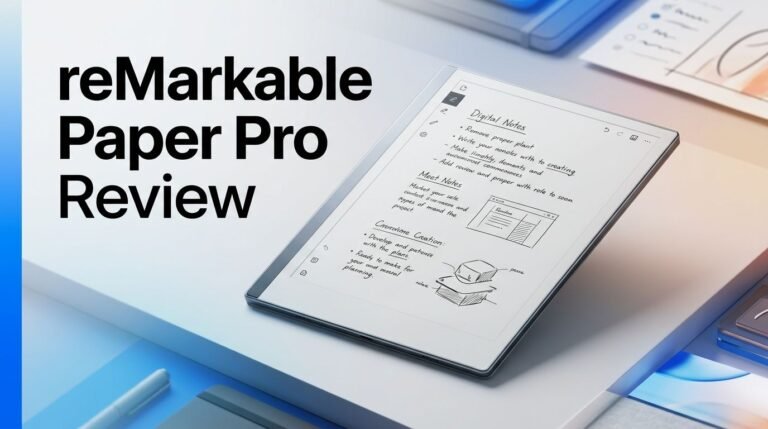
reMarkable Paper Pro

Last update on 2026-10-31 / Affiliate links / Images from Amazon Product Advertising API Some of the links on this website are affiliate links, which means that at no additional cost to you, I earn a commission if you click through and make a purchase. I only recommend products and services that I believe will add value to my readers. Thank you for your support!
This device feels a lot like writing on real paper. The screen has a smooth, natural texture under the pen. Its large display makes reviewing documents easy. Many professionals use it for meetings and sketches. It also syncs with your cloud apps, so your files stay close at hand.
Kindle Scribe


Last update on 2026-10-31 / Affiliate links / Images from Amazon Product Advertising API Some of the links on this website are affiliate links, which means that at no additional cost to you, I earn a commission if you click through and make a purchase. I only recommend products and services that I believe will add value to my readers. Thank you for your support!
Kindle Scribe fits well if you already read books on Kindle devices. It has a large display and a built-in pen for handwritten notes. You can jot ideas right in the margins of your ebooks. The battery lasts for weeks, so you can take it almost anywhere. It works great for readers who love to annotate.
Kobo Elipsa 2E

Last update on 2026-10-31 / Affiliate links / Images from Amazon Product Advertising API Some of the links on this website are affiliate links, which means that at no additional cost to you, I earn a commission if you click through and make a purchase. I only recommend products and services that I believe will add value to my readers. Thank you for your support!
Kobo Elipsa 2E is a strong choice for students and planners. Its stylus feels natural on the screen. You can convert handwritten notes into typed text, which saves time later. It also offers a built-in ebook library for easy reading. It suits people who read and write in equal measure.
Processing Power and Battery Life
The Boox Note Air 4C uses a processor with eight cores. One review names a Snapdragon 750G chip running at 2GHz. That chip handles note apps and document reading with steady results.
The tablet also has 6GB of RAM. This memory keeps several apps ready at the same time. You can move from a notebook to a PDF without long waits.
Processing power shows its value during daily work. Simple tasks open fast. Larger files may take a moment longer to load.
The battery holds 3,700mAh of power. Battery life depends on more than capacity alone. Screen brightness and the front light use the most energy. Lower the light when you read in a bright room.
Wi-Fi and Bluetooth also draw power. Turn them off when you do not need them. Background apps can drain the battery quietly. Open the battery menu each week to see which apps use the most power.
Sleep mode saves energy when you step away. Set a short sleep timer so the screen does not stay on for long. Put the device to sleep during breaks too.
Long reading sessions and short note sessions use power in different ways. Plan a full charge before a long reading day.
Track your own results for one week. Write down the battery level at the start and end of each day. This simple log shows how the device fits your habits. Your routine matters more than any spec sheet.
Charge the device before long trips. Keep the cable and charger in your bag. If the battery drains faster than expected, contact support for help.
Reading, PDFs and Web Browsing
Reading feels calm on this tablet. The screen shows text without harsh glare. Your eyes can rest during long chapters.
Color pages bring extra life. The enhanced Kaleido 3 display shows comics, magazines, and picture books in color. Black and white text stays sharp too.
PDFs need some tuning. Many PDFs look tiny on a smaller screen. Cropping margins removes empty space, so the text grows larger.
Reflowable files adjust to your screen. Ebook formats like EPUB resize text to fit the page. Fixed PDF layouts keep their original shape, so zooming matters more.
Marking up documents feels natural. Highlight key lines and add margin notes right on the page. Your marks stay saved inside the file.
Long documents need easy navigation. Use the table of contents to jump between sections. Bookmarks help you return to the page where you stopped.
Page turns need patience. E Ink screens refresh slowly, so fast scrolling can leave faint ghosting. Turn pages at a steady pace for cleaner text.
Browsing works best for articles. Long reads, news stories, and blog posts suit the large screen. Heavy video and busy sites can feel slow.
Save pages for later reading. Download articles before a trip. Offline reading keeps your focus on the words instead of the Wi-Fi signal.
Check Arabic text before you commit. Some users report Arabic text support issues on this device. Open a sample page from your favorite reader first.
Build a simple reading routine. Read one article and one PDF on your first day. Notice how your eyes feel after thirty minutes.
Pros and Cons
Pros
– Designed to minimize distractions keeps your focus on the page.
– Web access gives you quick answers without leaving your notes.
– Note-taking feels simple and focused on this device.
– The Android 13 base feels familiar to many users.
Cons
– Some users report Arabic text support issues.
– Occasional hardware problems can interrupt your work.
– One user lost parts of handwritten notes.
Who Should Buy It
This tablet suits readers who want a calm, focused space for their work. Think about your daily routine before you decide. Your habits will show whether this device fits your life.
Students are a strong match. One device can hold class notes, reading lists, and study guides. Fewer tabs and fewer apps can make studying feel simpler.
Teachers who prepare lessons may appreciate it too. You can sketch out plans by hand and keep all your materials in one place. A quiet screen also helps you focus during long planning sessions.
Professionals who sit through long meetings may benefit. You can jot down ideas and keep your phone face down. A quiet page helps you stay present in the discussion.
Writers who draft by hand often feel at ease. Many people find the stylus experience natural. You can move from rough ideas to organized chapters without switching tools.
People who want less screen time may like it. Use the tablet for reading and writing in the evening. Keep social feeds and video apps on your phone instead.
Some buyers should think twice. If you read in Arabic, test the text support before you commit. Also, plan for repairs or returns, since some users report occasional hardware problems.
Fast video fans should look elsewhere. E Ink screens shine with text, not motion. Gamers and streaming fans will feel limited here.
Skip this tablet if you rarely take notes. If your current device already meets your needs, switching may not add much. Choose this tablet if focus matters more than speed. Your reading and writing habits should guide the final choice.
Final Verdict
Our verdict is simple: the Boox Note Air 4C is a strong choice for focused work. It shines when you use it as a daily notebook and reading companion. Some gaps still matter, though.
Start with your language needs. Test your main writing language and fonts during the first few days. Many users also ask about export options, so check file formats early.
Next, think about your backup habits. One user lost parts of handwritten notes, so sync your pages often. Export key files to cloud storage every week.
Hardware problems also deserve a closer look. Choose a seller with a clear return policy. That way, you can fix issues without stress.
Ask yourself how you plan to use it. If you mainly play games or scroll social feeds, another device may fit better. This tablet rewards slow, deliberate use.
Who should skip it? Anyone who wants full color video or fast app switching will feel limited. Plan your daily routine around those needs.
Readers who love a quiet screen will likely enjoy it most. Students, writers, and meeting attendees may find it useful. Consider your own routine honestly.
Compare before you decide. The Bigme B1051C and the Boox Note Max offer similar paths. Read practical tests and check how each handles your daily apps. Check each device’s app store and file support too.
Set a short trial period. Use the device for one full week with your real tasks. Note what feels smooth and what feels slow. Your answer will be clear by the end. Keep notes on what you like and dislike. Those notes will guide your final choice.
Final thought: this tablet supports a calmer way to work. It asks you to slow down and focus on one page at a time. For many readers and note takers, that trade is a good fit.
Frequently Asked Questions
How does it compare with the Boox Note Max?
Many readers compare these two models in online forums. Check the screen size, weight, and pen feel before you choose. Holding each one can help you decide.
Is the Bigme B1051C a strong alternative?
It uses the same kind of color screen, called Kaleido 3. It also runs on software built on Google, so the setup may feel different. Pick the option that matches the apps you use most.
Can it handle PDF files well?
Yes, PDFs are one of its main uses. You can read, mark up, and take notes on the same page. Large files may need a little more patience.
Does the color screen look like a phone display?
No, E Ink color looks softer and less bright than a phone screen. Colors appear muted, so it works best for text and simple highlights. Photos and videos will look less vivid than on a standard tablet.

Hi, my name is Lily you can say i am a gadget hunter at this point. Welcome to Gadget Gallery The Gallery of Gadget Reviews