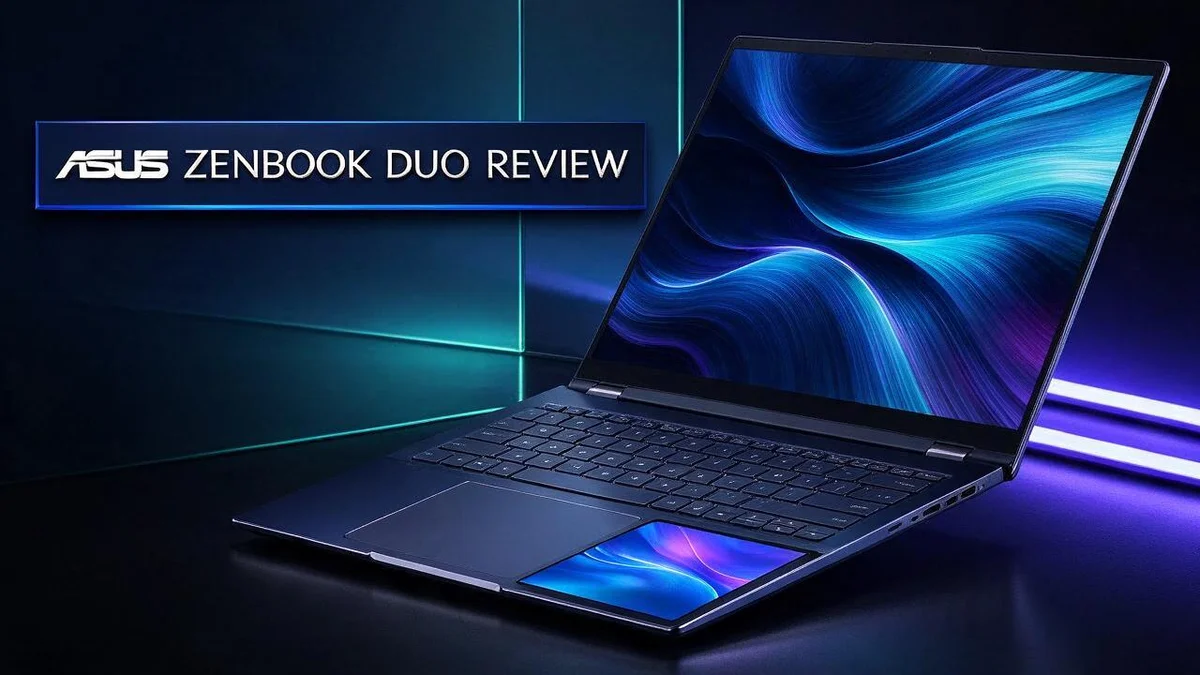
Asus Zenbook Duo Review 2026: Performance, Battery and Verdict
Imagine having two screens in one slim laptop. That is exactly what the Asus Zenbook Duo offers. Many people love the idea of extra workspace, but they also want something light enough to carry every day.
The Zenbook Duo puts a second display right below the main one. Both screens use bright OLED panels that look great for work, videos, and games. You can also use touch and pen input, which makes sketching and note taking feel natural.
This review covers the latest design, performance, and daily use. We test how it handles real tasks, how long the battery lasts, and whether the audio holds up. Keep reading to see if this dual screen laptop fits your needs.
In a Nutshell
-
Two bright OLED screens: The 2024 model uses two 14 inch OLED displays. Reviewers often call these screens beautiful.
-
Strong Intel Core Ultra 9 power: This chip handles heavy apps with ease. It also stays cool during gaming sessions.
-
Touch and pen support: You can tap the lower screen or draw with a pen. This makes sketching and note taking feel natural.
-
Newer Series 3 silicon: The 2026 model moves to Intel Core Ultra Series 3 chips. This update aims to deliver smoother everyday performance.
-
Battery life is the weak spot: A 2025 review flagged poor battery life. Keep a charger nearby for long work days.
-
Audio can sound muted: Some 2024 reviews noted quiet speakers. Headphones may suit movie nights better.
-
Rivals worth comparing: The Lenovo Yoga Book 9i, Lenovo Yoga 9i, HP Spectre x360 14, and Microsoft Surface Pro all offer flexible designs. Each one gives you a different way to work on the go.
Dual-Screen Display and Pen Support


Last update on 2026-11-06 / Affiliate links / Images from Amazon Product Advertising API Some of the links on this website are affiliate links, which means that at no additional cost to you, I earn a commission if you click through and make a purchase. I only recommend products and services that I believe will add value to my readers. Thank you for your support!
Extra room changes the way you multitask. Drag a calendar, a chat window, or a music app onto the lower panel. Your main work stays clear and uncluttered at the top.
The lower panel also works well for reference material. Open a research page below while you write above it. Copying facts becomes quicker because you never need to minimize anything.
The pen turns the lower screen into a notepad. Sketch quick diagrams, jot down action items, or mark up a PDF without opening a separate app. Handwritten notes often feel more natural than typing during brainstorming.
Pen input suits creative work too. Designers can rough out layouts on the lower panel while the main screen shows the final file. Students can take handwritten notes during lectures and keep them in one place.
Split views save time on long projects. Place a spreadsheet on one side and a report on the other. Scrolling through data feels less tiring because you do not keep switching tabs.
Video calls benefit from the second screen as well. Keep meeting notes on the lower panel while the call stays visible above. This setup helps remote workers stay organized during busy days.
Glare and viewing angle still play a role. Both screens reflect light differently depending on where you sit. Adjust the lid angle until the lower panel looks clear without tilting your head.
Pen and touch work together nicely. Tap the lower screen to scroll or open apps, then switch to the pen for detailed edits. Moving between the two inputs feels smooth after a short learning period.
Pen support has limits, though. The pen works best in apps built for stylus input. Some older programs treat it like a mouse, so check compatibility before adding accessories.
Overall, the dual display feels useful for daily work. It adds room without adding bulk to your desk. Most people will value the extra space for multitasking, note taking, and creative projects.
Design and Portability
Good design starts with how a laptop feels in daily life. The Asus Zenbook Duo helps users carry, open, and set up the laptop quickly.
The older ZenBook Pro Duo gained a reputation for being chunky and heavy. Many reviewers pointed to its bulk as a clear downside. The newer approach aims for a cleaner and more practical frame.
Carrying it around is a big part of the experience. A lighter feel helps when you walk between meetings or classes. Travelers can pack it alongside a charger and a notebook.
Daily routines reward a light design. Students can move from class to the library without strain. Remote workers can shift from a desk to a sofa in minutes.
Build quality matters for a device that folds and shifts. A solid frame helps protect the lower screen when you pack it away. Gentle handling still matters, so a padded sleeve is a smart addition.
Keep the screens clean with a soft cloth. Fingerprints show up on glass, so a quick wipe keeps the display looking sharp.
Heat control also shapes portable comfort. Reviewers say the laptop stays cool during gaming sessions. Less heat means a more comfortable experience on your lap.
Setting up a workspace takes only seconds. Open the lid, and the screens are ready for work. Ports matter for travelers too, so check the side panels before a trip. Adapters can fill gaps when you need an older monitor or projector.
Weight and size still shape the final choice. Consider how often you carry the laptop before you decide. A short commute may feel easy, while long travel days may test your patience.
Overall, the design balances size and function well. It suits commuters, students, and frequent travelers who want more screen space on the move.
Performance and Cooling
Performance and cooling shape how the Zenbook Duo feels after hours of use. Fast speeds matter, but steady temperatures matter just as much. Let’s look at how the machine handles pressure.
The laptop stays cool when gaming. The chassis stays calm during play. This helps during long sessions.
Sustained work tells a different story than short bursts. A quick benchmark can look great. A long video export puts more heat into the body. Steady performance matters more for real projects.
The cooling system pulls air through vents near the hinge. Hot air leaves through the rear edge. Blocked vents slow airflow, so keep them clear.
Fan noise changes with the workload. Light tasks keep the fans quiet. Heavier jobs spin them up, so you may hear a steady hum. Pick a performance mode that fits the moment.
Long workdays need steady speed. Thermal limits can slow a chip when heat climbs too high. Good airflow helps the processor hold its pace.
Heat can build up under the keyboard during long gaming. A short break lets the metal cool down.
Lifting the rear edge improves airflow. A small stand or book gives the vents room to breathe. This simple step can help keep temperatures lower.
Dust slowly clogs fan intakes over time. Clean the vents every few months with compressed air. Use gentle air and keep the nozzle away from the screen. A clean system keeps cooling efficient for years.
Lap use needs extra care. Hot bases can warm your legs during heavy tasks. Use a lap desk or a firm cushion to protect comfort and airflow.
Quick checks help you spot trouble early. Feel the lower edge after an hour of work. If it feels hot, close heavy apps and check the vents.
Overall the Zenbook Duo handles demanding work with steady composure. Cooling stays effective when you give it room. Plan your setup around airflow, and the laptop repays you with reliable speed.
Top 3 Alternatives
If you want another laptop with extra screen space, these three options are worth a look. Each one takes a different approach to dual displays.
Lenovo Yoga Book 9i

Last update on 2026-11-06 / Affiliate links / Images from Amazon Product Advertising API Some of the links on this website are affiliate links, which means that at no additional cost to you, I earn a commission if you click through and make a purchase. I only recommend products and services that I believe will add value to my readers. Thank you for your support!
The Lenovo Yoga Book 9i places two OLED screens in one slim body. You can keep your main work on the top screen and notes or tools on the bottom one. It also flips into a tent or stand mode, so it works well for travel, reading, and light tasks.
Lenovo ThinkBook Plus

Last update on 2026-11-06 / Affiliate links / Images from Amazon Product Advertising API Some of the links on this website are affiliate links, which means that at no additional cost to you, I earn a commission if you click through and make a purchase. I only recommend products and services that I believe will add value to my readers. Thank you for your support!
The Lenovo ThinkBook Plus adds a small secondary display on the lid. You can keep chat windows, calendars, or music controls on that extra panel. The build feels sturdy and professional, which suits daily office work and business users who handle sensitive files.
Asus ZenBook Pro Duo

Last update on 2026-11-06 / Affiliate links / Images from Amazon Product Advertising API Some of the links on this website are affiliate links, which means that at no additional cost to you, I earn a commission if you click through and make a purchase. I only recommend products and services that I believe will add value to my readers. Thank you for your support!
The Asus ZenBook Pro Duo pairs a large main screen with a wide ScreenPad Plus strip above the keyboard. Creators can drag timelines, color palettes, or chat panels across that strip. It usually offers strong graphics power, so it fits video editing and design work best.
Battery Life and Audio
Battery life needs careful planning. Two bright screens draw more power than one screen would. Many people will reach for a charger before the day ends.
A 2025 review described the battery life as poor. Running both displays at full brightness drains the cell fast. Plan your day around the nearest power outlet.
Brightness has the biggest effect on power use. Dim the lower panel when you only need the top screen. This small change can stretch your time away from a plug.
Power modes make a real difference. Balanced or battery saver modes limit background tasks and slow the processor a little. Switch to them for email, reading, and notes.
Using one screen at a time also saves energy. Close the second display during deep focus work. Your main app then gets all the attention.
Audio is the weak spot. Reviewers of the 2024 model called the sound muted. The built in speakers lack bass, so films and music can feel thin.
Headphones solve this problem fast. Wired or wireless earbuds bring fuller sound for music, films, and podcasts. A small Bluetooth speaker also works well in shared spaces.
Calls depend more on clear voice than loud output. A headset with a good microphone helps colleagues hear you well. Quiet rooms also help the mic pick up less background noise.
Heavy tasks change the battery story too. Video editing and large spreadsheets pull more power. Check your charge before a long meeting or class.
Heat wears batteries down over time. Store the laptop somewhere cool when you pause work. Avoid leaving it in a sunlit car or near a radiator.
Pack smart for long days. Bring a power bank, a charger, and headphones in one pouch. Then the laptop stays ready wherever you work.
Pros and Cons
Pros
- Two 14-inch OLED screens give you extra room for multitasking.
- Touch and pen support make sketching and note taking feel natural.
- Reviewers often describe the screens as beautiful and bright.
- The practical design suits everyday school and office work.
- The 2020 model earned praise as an ultraportable option.
Cons
- Two screens can feel like overkill for simple tasks.
- The dual screen layout may take time to get used to.
- Older models lack the newest chip upgrades, so check the release year before you buy.
Who Should Buy It
Some buyers will love this laptop right away. The Zenbook Duo suits people who want more screen space without a bulky desktop setup. It fits a specific kind of user.
Writers and researchers often keep several documents open at once. A second display holds notes, sources, and drafts side by side. Students can also read textbooks on one screen while typing essays on the other.
Creative people gain a lot from this setup. Designers can place their tools on the lower display. The main screen stays free for the artwork itself.
Frequent travelers form another good group. The laptop packs two displays into one bag. It saves space on crowded airport seats, train tables, and hotel desks.
Buyers should think about their daily habits first. Someone who mostly sends emails or browses the web may not need two screens. A simpler laptop could serve them better.
Who should skip it? People who need rugged gear for outdoor work may look elsewhere. Strong rivals include the Lenovo Yoga Book 9i, HP Spectre x360 14, and Microsoft Surface Pro.
Shoppers should compare these options side by side. Look at how each machine handles multitasking, screen size, and portability. Try the keyboard and screens in a store if possible. Read recent reviews too, since newer models may change the picture.
Think about the setup you already own. A person with a large monitor at home may not need a second screen on the go. Another person with no desk space might find it perfect.
Consider how often you work away from a desk. Frequent movers gain the most from a compact dual screen design. Occasional users may prefer a simpler machine with fewer moving parts.
In short, this laptop suits multitaskers, creators, students, and travelers. Match the machine to your daily routine, and you will likely feel pleased with it.
Final Verdict
Our overall verdict is positive. The Asus Zenbook Duo takes a bold approach to the laptop. It turns a single desk into a small workstation with two views. Few rivals attempt this idea so well.
The biggest strength is flexibility. You can open a video call on one screen and take notes on the other. Switching between tasks feels quick and natural for most people.
Think of it as a second monitor that travels with you. This idea matters most for people who leave the office often. You do not need a full desk setup in every location.
Competitors take different routes. The Lenovo Yoga Book 9i also uses a dual screen idea. The Microsoft Surface Pro focuses on a detachable tablet form instead.
The HP Spectre x360 14 sticks with a classic hinge design. That may suit people who want a traditional laptop feel.
Performance also deserves a closing mention. The Intel Core Ultra chip handles spreadsheets, photo edits, and browsing with ease. Heavy gaming stays manageable because the body keeps its temperature steady.
Try the hinge and kickstand in person. A stable angle matters for long sessions. Wobbly support can turn a good idea into a daily annoyance.
Think about your work style first. Hybrid workers who move between home and the office may get the most use. Fixed desk workers might prefer a larger external monitor setup instead.
Choose this model if you juggle many tasks daily. Students, designers, and managers often gain the most from it. Casual users may find the layout excessive for light tasks.
Final thought: the Zenbook Duo rewards people who embrace the dual screen setup. It may frustrate those who want a simple, traditional laptop. Weigh your daily habits, then decide with confidence.
Frequently Asked Questions
Does the battery last all day?
Battery life is the main weak spot. Some reviewers found it short during heavy use, especially with both screens on. Light tasks like email and writing stretch the charge much further. Pack a charger if you plan a long day away from a plug.
Are the speakers good enough for movies?
The audio sounds muted for many buyers. Headphones or earbuds give a much richer sound for films and music. Plan on a separate pair if sound quality matters to you.
Does it stay cool when gaming?
Yes, the laptop keeps its temperature low during play. The Intel Core Ultra 9 chip handles demanding games well. You can also play a game on one screen and check a guide on the other.
Can I use it for video calls?
Yes, it works well for video calls. Place the call window on the top screen. Keep your notes or shared files on the lower screen so you can read and talk at the same time.
Is it useful for students?
Students often use it for lectures and research. One screen can show a textbook while the other holds notes. Split screens make studying feel organized and help you stay focused.

Hi, my name is Lily you can say i am a gadget hunter at this point. Welcome to Gadget Gallery The Gallery of Gadget Reviews