Microsoft Surface Pro 11 Review: Performance, Display and Verdict
Looking for a tablet that works like a laptop? The Microsoft Surface Pro 11 might be the answer. It launched in June 2024 and brings a fresh look to Windows tablets.
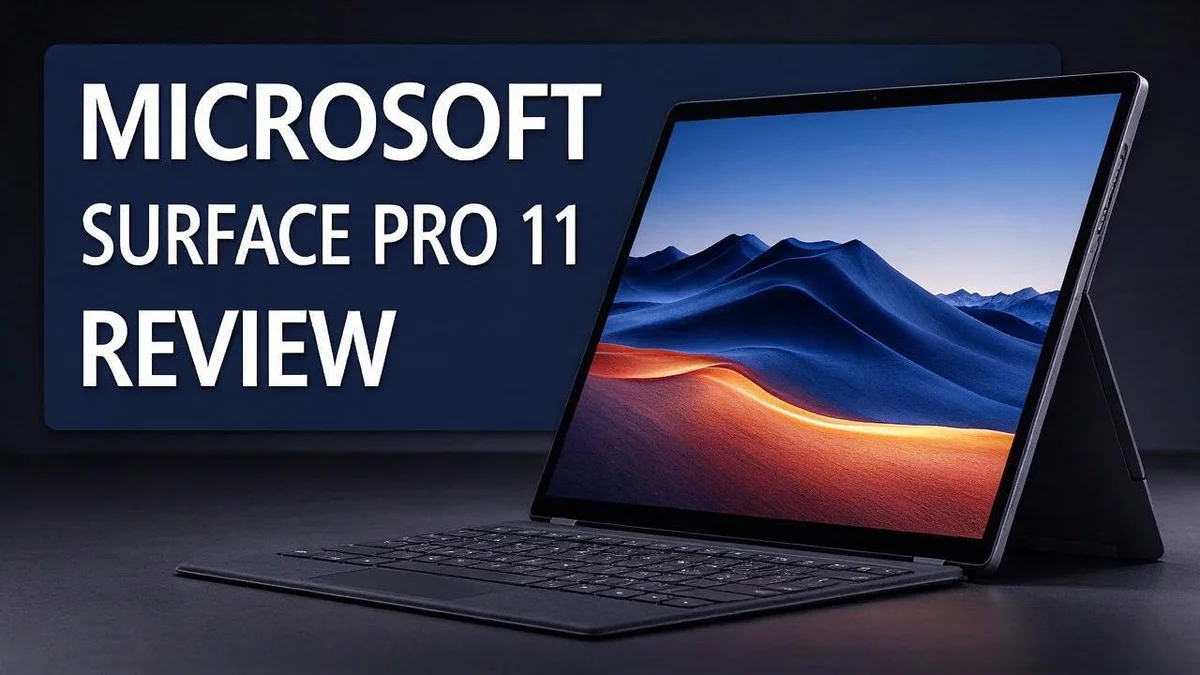
The 13 inch OLED screen shows sharp, vivid colors. Text looks crisp. Movies and photos look great too.
Battery life stands out. Many users get through a full day on one charge. The device also stays quiet during daily work, so it feels calm and easy to use.
The chip and memory can vary by model. Some listings show a Snapdragon X Plus with 8GB RAM, while others show 16GB with a Snapdragon X Elite. Check your exact setup before you buy.
In a Nutshell
- Solid build: The tablet feels sturdy in your hands and stays light enough to carry from room to room during busy days.
- Strong speakers: Sound comes out loud and clear, so movies, music, and video calls feel more immersive without extra gear.
- Quiet operation: The device stays nearly silent during most everyday tasks, which helps when you need focus in a shared space or a library.
- Pen input lag: Some users notice a small delay when writing with the pen, and one reviewer blamed Adobe software for part of the problem.
- Graphics limits: Photo editing in Lightroom can feel slow, so creative users should test their own workflow before they rely on it for big projects.
- App compatibility: A few older Windows programs may not run smoothly on the Arm based chip, so check your favorite tools before you commit.
Design, Display and Build

Last update on 2026-11-06 / Affiliate links / Images from Amazon Product Advertising API Some of the links on this website are affiliate links, which means that at no additional cost to you, I earn a commission if you click through and make a purchase. I only recommend products and services that I believe will add value to my readers. Thank you for your support!
The Surface Pro 11 keeps its design clean and simple. Thin edges and a flat back give it a modern look.
The kickstand deserves special attention. It opens to many angles for video calls or desk drawing.
Flexible angles make a real difference. You can sit the screen upright or tilt it low for sketching.
The keyboard attaches with magnets along the bottom edge. It lines up quickly, so you can start typing right away.
The connection feels secure during daily use. The keyboard stays put even when you shift the device on your lap.
Adjusting the stand feels easy with one hand. The stand holds its position once you set it.
The bezels around the screen look thin. More of the front goes to the display itself.
The panel also supports a 120Hz refresh rate. Scrolling through web pages and dragging windows looks smooth.
Touch response feels quick when you swipe through apps. Taps register fast and the screen follows your finger.
The front camera supports Windows Hello face sign in. You can unlock the device by looking at the screen.
The edges hold USB ports for chargers, drives, and monitors. Plan your desk setup so the cables stay tidy.
The surface feels smooth in the hand. The edges stay comfortable during long writing or reading sessions.
The layout of the screen suits split screen work. Two windows fit side by side with room to spare.
Creative users may enjoy the wide view for sketches and layouts.
Overall, the design balances style and practical use. It suits people who want one device for work and play.
Many buyers appreciate a simple setup with few visible buttons. The focus stays on the screen and the content.
Performance and App Compatibility
Performance on the Surface Pro 11 depends on what you run. Everyday tasks feel smooth from start to finish. Web browsing, email, and document editing rarely slow down.
The chip uses an Arm design, so app support plays a big role. Many popular programs now run natively. Others still depend on a translation layer.
Windows converts older x86 apps so they can run on this chip. This process works for many tools. However, it uses extra processing power, so heavier programs may feel less responsive.
Check your essential apps before you buy. Visit each developer website and look for an Arm native version. Native builds usually run faster and use less battery.
Games deserve extra thought. Casual titles and older games often run well. Modern 3D games may need lower settings and can drop frames during busy scenes.
Multitasking works well with light workloads. A few browser tabs, a video call, and a word processor can stay open together. Opening several large projects at once can cause slowdowns.
Developers and power users should test their tools carefully. Coding editors, virtual machines, and niche utilities may behave differently. Microsoft releases updates often, so support improves over time.
Heat management also matters during long sessions. The body stays comfortable for light tasks. Sustained heavy workloads can make the frame feel warm, yet performance stays steady.
Security and antivirus tools also need a check. Some older programs may ask for driver updates. Keep Windows updated so your apps receive the latest fixes.
Peripherals may need extra drivers too. Printers, scanners, and USB adapters should list Windows on Arm support. Check the box or the manufacturer page before you buy.
Test your own workflow first. Download trial versions of your favorite software. Run a full day of work to see how the device handles your routine.
Battery Life and Real-World Endurance
Battery life is one of the strongest points of the Surface Pro 11. Many owners find that it lasts through a full workday without a charger nearby.
Real life use can change the results, though. Screen brightness, video streaming, and background syncing all draw power. Lowering the brightness and choosing a balanced power mode can help the charge last longer.
Your habits matter most. Light tasks like reading email, writing notes, and browsing the web use very little energy. Heavy tasks like video editing or long gaming sessions drain the battery much faster.
Think about your daily routine before you decide. Students who sit through long lectures may need only one charge. Travelers on long flights should still pack the charger because heavy use can shorten the day quickly.
Windows includes a battery usage page in Settings. This page shows which apps use the most power. Closing unused apps and removing background tasks you do not need can add useful hours.
Charging habits also shape your experience. Use the included power adapter for the fastest recharge. A short top up during lunch or a coffee break can give you extra time for the afternoon. Plan your charging around your schedule so you never run low at a bad moment.
The best test is your own day. Run your normal apps from morning until night. Note how much charge remains at the end. Your results will tell you more than any single number on a spec sheet.
Top 3 Alternatives
Apple iPad Pro


Last update on 2026-11-06 / Affiliate links / Images from Amazon Product Advertising API Some of the links on this website are affiliate links, which means that at no additional cost to you, I earn a commission if you click through and make a purchase. I only recommend products and services that I believe will add value to my readers. Thank you for your support!
The Apple iPad Pro is a powerful tablet for creative work. Its bright display shows colors with great detail. Artists and students often pick it for sketching and note taking.
It runs iPadOS and works well with the Apple Pencil. Many apps are built for touch, so you can draw, edit photos, or watch videos with ease. Its thin frame makes it easy to hold for hours. Battery life lasts a full day for most people.
Lenovo Yoga 7i

Last update on 2026-11-06 / Affiliate links / Images from Amazon Product Advertising API Some of the links on this website are affiliate links, which means that at no additional cost to you, I earn a commission if you click through and make a purchase. I only recommend products and services that I believe will add value to my readers. Thank you for your support!
The Lenovo Yoga 7i is a flexible laptop that folds into tent or tablet mode. It runs Windows, so you can use familiar desktop software. The touchscreen responds quickly to taps and swipes.
Its keyboard feels comfortable for long writing sessions. Its sturdy hinge keeps the screen steady when you tap or draw. Many users like the built-in pen support for taking notes. This model suits people who want a laptop and a tablet in one device.
Samsung Galaxy Book4

Last update on 2026-11-06 / Affiliate links / Images from Amazon Product Advertising API Some of the links on this website are affiliate links, which means that at no additional cost to you, I earn a commission if you click through and make a purchase. I only recommend products and services that I believe will add value to my readers. Thank you for your support!
The Samsung Galaxy Book4 is a slim Windows laptop with a sharp display. It stays light, so you can carry it to class or the office. Fast performance helps with email, browsing, and video calls.
Its backlit keyboard and large trackpad make typing simple. Its battery supports long days of work on a single charge. Samsung also links well with Galaxy phones. If you own a Galaxy phone, sharing files feels seamless.
Pen, Keyboard and Accessory Experience
Pen input feels natural for taking notes and marking up documents. The tip glides across the glass, and many people find it close to writing on paper.
Some users notice a small delay when they draw quick, fast strokes. One reviewer blamed the drawing software for this lag, so test your favorite apps before you rely on the pen for important work.
Pressure and tilt support helps artists shade and sketch with more control. Light pressure makes thin lines, while a firmer grip creates bold strokes. This makes the pen useful for both quick ideas and detailed drawings.
The pen can stay close to the device when you are not using it. Many owners say it charges while docked, so you rarely need to search for a cable. Keep it in a sleeve or pocket so it does not get lost.
The keyboard gives you a laptop style setup for longer writing sessions. The keys feel firm and quiet, which helps during long emails, reports, and spreadsheets. Your fingers settle into a steady rhythm after a few minutes.
The trackpad below the keys responds well to taps, clicks, and multi finger gestures. Scrolling through long pages feels smooth, and precise cursor control makes editing easier. Still, some people prefer an external mouse for detailed design work.
Accessories can change how you use the tablet every day. A matte screen protector adds a paper like texture under the pen tip, and it also cuts down glare near windows. A folio case can protect the screen and hold the tablet at a comfortable desk angle.
Check compatibility before you buy any accessory. Look for labels that name the Surface Pro 11 directly, since older Surface models use different sizes and connectors. Read recent customer comments to confirm the fit and quality.
The best setup depends on your daily work. Writers may value the keyboard most, while artists often rely on the pen. Try your common tasks with each accessory, and choose the combination that feels natural in your hands.
Audio, Noise and Portability
The Surface Pro 11 delivers a pleasant listening experience. Sound comes from speakers built into the body. Music and videos feel clear and full for such a slim device.
Volume reaches a comfortable level in a quiet room. Movie dialogue stays easy to follow. Turning the sound up very loud in a busy space can make it feel thin, though.
Video calls sound clear too. The microphones pick up your voice well from a short distance. Most background noise fades away during calls, so colleagues hear you without much effort.
Fan noise is another strong point. The tablet stays silent during email, web browsing, and reading. You may hear a soft hum only when you push demanding tasks for a long time. Most people will never notice it in a normal office or library.
Portability is where this device truly shines. It feels light in one hand. The slim body slips into a backpack or tote bag without much fuss.
Carrying it all day feels comfortable. The flat edges help it rest neatly on a desk or tray table. You can also hold it upright for reading on a crowded commute.
Travelers will appreciate how easily it fits on airplane tray tables and small café tables. The compact frame also works well on busy trains. Short trips feel effortless.
The weight changes once you attach the keyboard, so plan for a little extra bulk. Keep both parts in a padded sleeve. This protects the screen from scratches and bumps while you move between meetings.
Overall, the audio and portability make this device a strong choice for people on the go. If sound quality matters most to you, test the speakers in person before you decide.
Pros and Cons
Pros
- The bright OLED screen makes photos and videos look vivid.
- The solid build feels sturdy in your hands.
- It handles everyday tasks like browsing and documents with ease.
- Strong performance keeps most daily apps running smoothly.
- The sleek look fits well in meetings, classes, and coffee shop visits.
Cons
- Graphics performance can lag during heavy photo editing.
- Some apps may not run as smoothly as they do on other Windows devices.
- Older Windows software may need extra setup or workarounds.
- Demanding creative projects may call for a more powerful machine.
Who Should Buy It
This tablet suits people who want one device for many jobs. Students can take notes in class and write papers at night. It fits busy people who juggle many tasks, and it can replace a tablet and a laptop at the same time.
Remote workers also get a lot from it. Video meetings, email, and shared files run smoothly on Windows.
Many office teams already use Microsoft tools, so the switch feels easy. Set up your work account once, and your files can sync across devices.
Hybrid workers who split time between home and the office will like the flexibility. Switching between a home desk and an office desk feels simple. Its Windows setup also matches the computers many companies provide.
Light creators are a good fit too. Someone who sketches, designs slides, or edits simple photos can enjoy this tablet. Heavy video editing and 3D design call for a stronger machine.
Windows fans who switch from a laptop will feel right at home. The layout looks familiar, and the taskbar and file explorer work the same way. Anyone who already uses Windows apps daily will adjust quickly. People who prefer iOS or macOS may need time to adjust.
Check the exact configuration before you choose. Listings can show different memory and processor options. Confirm these details on the official page so you know what you get. Ask a store employee for a demo if possible. This small step prevents surprises later.
Gamers should look elsewhere for the best experience. This tablet focuses on work, study, and streaming rather than fast games. A dedicated gaming laptop or console serves that need far better.
Overall, this device fits people who want a flexible Windows tablet. Students, remote workers, and casual creators will likely enjoy it most. Choose it when flexibility matters most. Match the model to your daily routine, and it can become your main computer.
Final Verdict
Battery life is a major win. You can work through a long day without searching for an outlet.
Pen input lag deserves a close look. One reviewer blamed Adobe software, so test your own apps before you decide.
Specs also need a second check. Listings disagree on memory, with some showing 8GB and others 16GB. Confirm the exact chip and RAM with the seller.
Competitors help frame the choice. The Surface Pro 8 remains a sensible pick for people who want a Windows tablet with fewer surprises.
Apple’s iPad Pro 12.9 inch is the performance alternative. It suits people who already live inside Apple apps and accessories.
The Asus ROG Flow Z13 targets heavier workloads with more raw power. Its design leans closer to gaming hardware, so it feels less like a classic everyday tablet.
Here is the simple verdict. The Surface Pro 11 works best as a daily companion, not a powerhouse for demanding projects.
Choose this tablet if you want steady performance, long battery life, and a slim setup for meetings, notes, and light editing.
Skip it if your work depends on heavy graphics or detailed pen drawing. Other devices may serve you better.
Think about your next two years, not just today. Your workload may grow, so pick a device that can keep up with new tasks.
Software support also matters over time. Windows updates arrive regularly, which helps keep this device useful.
Accessories change the feel of the device, so plan your setup early. Readers who want one device for many jobs will likely feel satisfied. Still, compare the options side by side before you commit.
Before you buy, try the keyboard and pen in person. Ask the seller about return options, too.
Then take a moment to match the device to your routine. That single step makes the decision much easier.
Frequently Asked Questions
Does the Surface Pro 11 have good speakers?
Yes, the speakers sound strong for a device this slim. Video calls and movies come through clear and full without extra gear. A headset still helps in noisy cafes or busy trains.
Is the Surface Pro 11 quiet enough for a library?
Yes, it runs quietly during most daily work. Note taking, reading, and light writing feel calm in a shared room. This makes it a good pick for study sessions where silence matters.
How does the Surface Pro 8 compare?
The Surface Pro 8 earned a spot as a strong Windows alternative in a 2023 list. Choose the Surface Pro 11 if you want the newer design and its bright OLED screen. Older models may still suit simple tasks well.
Should I double check the RAM and processor before ordering?
Yes, you should. Sources list different memory sizes, so the details can vary. Confirm the chip and memory on the product page before you check out. This quick step helps you avoid surprises after delivery.

Hi, my name is Lily you can say i am a gadget hunter at this point. Welcome to Gadget Gallery The Gallery of Gadget Reviews