Kindle Scribe Review 2026: Is This E-Ink Notebook Worth Buying?
Do you love the feel of paper but still want a smarter way to work? The Kindle Scribe could be the device you need. It brings reading, note taking, and writing into one slim tool.
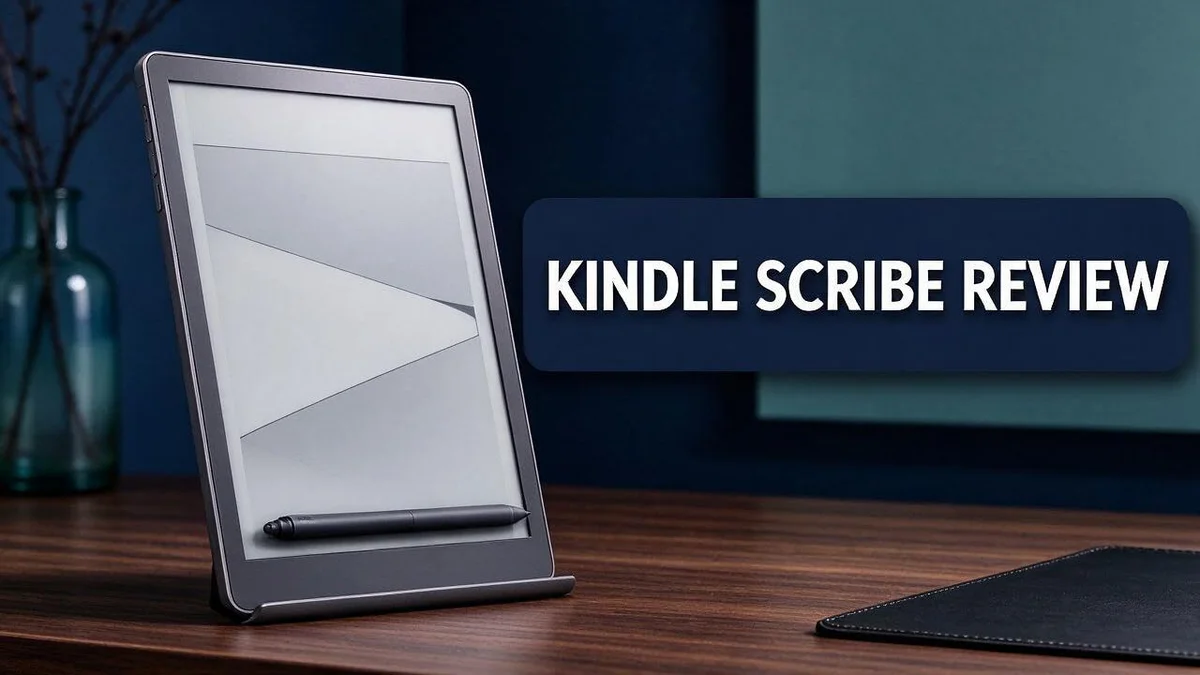
The 10.2 inch screen offers a glare free display that feels close to real paper. Its frontlight helps you read at any hour. The body feels light and balanced, so long sessions stay comfortable.
Writing feels natural with the Premium Pen and its side button. The 2024 model adds AI tools, Dark Mode, and faster performance. In this review, we explore what the Kindle Scribe does well and where it still falls short.
In a Nutshell
-
Comfortable to hold: The near cylindrical body and nearly perfect weight balance feel natural in your hand. Long reading and note taking sessions feel less tiring.
-
Reads well in any light: The built in frontlight helps you read in dim rooms, at night, or in bright spots. System wide Dark Mode also gives you a comfortable night reading option.
-
Faster than before: The 2024 model runs about 40 percent faster, so pages turn and notes appear with less waiting.
-
Smart writing help: New AI tools can clean up messy handwriting and create summaries of your notes. This saves time when you review long documents.
-
Flexible pages: Active Canvas and Expandable Margins give you room to sketch, jot ideas, and add space when you need it.
-
Things to know: Exporting annotated notes can be tricky inside the Amazon ecosystem. Plan your workflow early and check how your files move before you rely on them.
Display and Reading Experience


Last update on 2026-10-31 / Affiliate links / Images from Amazon Product Advertising API Some of the links on this website are affiliate links, which means that at no additional cost to you, I earn a commission if you click through and make a purchase. I only recommend products and services that I believe will add value to my readers. Thank you for your support!
Reading is where this device truly shines. The screen uses 300 ppi, so every letter looks sharp and clean.
Sharp text matters most during long sessions. Your eyes stay relaxed, and you can read for hours without strain.
Dark Mode works across the whole system. You can switch to light text on a dark background when you prefer that look.
Dark Mode also helps you read late at night. It keeps the room calm while your book stays easy to follow.
Reading software gets high praise from reviewers. Text reflows nicely, and you can change fonts, sizes, and spacing to suit your eyes.
Layouts stay neat across different books. Pages look balanced whether you read a novel, a textbook, or a magazine.
Adjusting text helps you find your own comfort level. Small changes to line spacing can make a big difference.
Everything on screen stays easy to see. Icons, menus, and notes all look clear against the soft background.
Reading and note taking share one screen. You can jot ideas while you read, then review them later.
Reading on the Kindle Scribe feels like a quiet escape. You get a focused space for books, notes, and ideas.
Night reading gets easier with the right setup. Pair Dark Mode with the frontlight for a gentle glow that rests your eyes.
Text stays crisp even at larger sizes. This helps when you enlarge fonts for easier reading. Words keep smooth edges, so bold headings and footnotes stay readable.
Images and diagrams also benefit from the fine detail. Charts, maps, and photos show clear lines and shading in black and white.
Grayscale keeps the focus on words and pictures. There are no bright colors pulling your attention away.
Display choices shape your daily habits. Try reading for a few days to see which settings fit you best.
Give the screen a few minutes to see how it feels. Most people adjust quickly and then forget they are reading on a device.
Pen and Writing Feel
Pen work is where the Kindle Scribe really feels like paper. The tip meets the screen with a gentle, tactile push. Your hand settles into a calm rhythm within minutes.
The stylus feels strong and dependable during long sessions. Quick notes keep pace with your hand. Your thoughts stay on the page instead of waiting for the screen.
Slow writing feels deliberate and calm. Quick scribbles still look neat. This balance matters for anyone who takes notes all day.
Sketching feels different from typing. You can draw loose shapes, arrows, and quick diagrams without fighting the surface. Many readers find this helps ideas flow.
Pen friction plays a big role in comfort. A smooth, steady feel keeps your strokes even. Less strain means you can write for longer stretches.
Learning the device takes only a short time. Most people adjust after a few pages of practice. Try writing a short list first to get a feel for the tip.
Switching between reading and writing feels smooth. You lift the pen, jot a line, and return to your book. The pause feels natural, not forced.
Your handwriting style matters too. Some people write in neat print, while others prefer loose cursive. The device handles both styles, so you can write the way you always do.
The pen also works well for quick edits. Crossing out a word or underlining a phrase feels simple and direct. These small moves make editing feel like a natural part of thinking.
If you love the feel of paper, give the pen a fair test. Write a page of notes, then compare it with your usual notepad. Your own hand will tell you the answer.
Design, Build and Ergonomics
The Kindle Scribe feels thoughtful from the first touch. Its body curves like a smooth cylinder, so it sits easily in your palm. Your hand rests in a relaxed position for longer.
The edges round off gently. Your fingers find natural spots without searching. Nothing feels sharp or awkward, even after an hour of reading.
The screen sits inside a slim bezel. This clean frame keeps your attention on the page. The 2024 model updates the bezel, so the front looks fresh and modern.
The Premium Pen has a side button. This extra control gives you one more way to work. You can keep your grip steady while you click.
The shape supports one handed reading on the couch, in bed, or on a crowded train. Your arm stays relaxed, and your wrist stays flat.
The 10.2 inch screen offers a comfortable reading area. It still fits into a tote bag or backpack. Size and portability work together well.
The overall build feels solid in the hand. Buttons and edges look neat, and nothing rattles when you move it. Good build quality gives you confidence during daily use.
A case can add grip and protection. Choose a light cover that keeps the back smooth. Test the fit before you buy one.
Pen posture matters too. Sit upright and let your elbow rest on the table. Small changes in posture reduce tired hands during long notes.
Overall, the design feels made for comfort. The shape, screen frame, and side button all support easy daily use. A good design makes the device feel like a natural part of your routine.
Try the device in a store if you can. Hold it for a few minutes and notice how your hand feels. Your comfort is the best test. Pay attention to edges, weight shifts, and grip during a short read.
Top 3 Alternatives
These three options are worth a close look. Each one mixes writing, reading, and sharing in a different way.
reMarkable Paper Pro

Last update on 2026-10-13 / Affiliate links / Images from Amazon Product Advertising API Some of the links on this website are affiliate links, which means that at no additional cost to you, I earn a commission if you click through and make a purchase. I only recommend products and services that I believe will add value to my readers. Thank you for your support!
The reMarkable Paper Pro offers a large colour e-paper screen. It feels close to writing on real paper. Its slim design makes it easy to carry to meetings and classes. Many writers like the screen for sketching diagrams and outlines. You can sync notes to the cloud and organise files in folders.
Boox Note Air

Last update on 2026-10-31 / Affiliate links / Images from Amazon Product Advertising API Some of the links on this website are affiliate links, which means that at no additional cost to you, I earn a commission if you click through and make a purchase. I only recommend products and services that I believe will add value to my readers. Thank you for your support!
The Boox Note Air runs on Android, so you can install many apps. It has a flexible e-ink screen with a built-in front light for dim rooms. Its open system gives you room to customise your reading and note apps. You can switch between reading ebooks and taking notes in seconds. Exported notes save as PDF files, which makes sharing simple.
Kobo Elipsa 2E

Last update on 2026-10-31 / Affiliate links / Images from Amazon Product Advertising API Some of the links on this website are affiliate links, which means that at no additional cost to you, I earn a commission if you click through and make a purchase. I only recommend products and services that I believe will add value to my readers. Thank you for your support!
The Kobo Elipsa 2E pairs a sharp e-ink display with a precision pen. It can turn handwriting into typed text, which helps when you review notes later. Book lovers will enjoy its strong reading tools. The case and stylus feel comfortable during long study sessions.
Each device has its own strengths. Pick the one that fits your daily habits. Think about screen size, favourite apps, and how often you read books.
Software, AI Tools and New Features
The 2024 model adds smart software to the Kindle Scribe. Its new tools make daily note taking feel faster and more helpful.
The AI handwriting fixes clean up messy words. Your notes look neat without extra effort. Small errors fade away quickly, and the tool works in the background while you write.
AI summaries help you review long notes. Lecture pages or meeting notes can shrink into short overviews. You can spot key ideas in seconds.
Processing speed also improves by 40%. Pages respond quickly, and switching tasks feels smooth. Less waiting keeps your focus on the words.
Active Canvas gives your writing more flexibility. You can place notes beside the text that inspired them. Ideas stay connected to their source.
Compared with rivals such as Kobo Elipsa 2E and Supernote, the Kindle Scribe leans heavily on AI helpers. That focus makes it a strong pick for people who want software support.
Expandable Margins make room for longer thoughts. The margin grows when you need extra space. Crowded notes become easier to read.
New layout tools suit students and professionals alike. Students can organize class notes by subject. Each page can match your own workflow, so experiment with them for a few days before deciding.
Some reviewers feel the new features still need polish. One 2024 review says several tools need more development. Early users may notice rough edges.
Reliable results matter most for important work. Test summaries and handwriting fixes on real notes first. Check whether the output matches your needs.
Overall, the software gives note takers real momentum. AI support, faster performance, and flexible layouts work together. Give the new tools a fair chance and see how they fit your routine.
Exporting Notes and Ecosystem Fit
Getting your notes off the Kindle Scribe can feel tricky. Your handwritten pages stay inside Amazon’s system.
This matters most if you write for work or school. Many teams and classes use other note apps. Moving files between them takes extra steps.
Think about your workflow before you buy. Ask yourself where your notes need to go after you finish writing.
Exporting works best for simple tasks. You can send documents to your Kindle library and read them later. Sharing a final version is easier than sharing raw handwriting.
The ecosystem fit depends on how deep you go with Amazon. If you already read Kindle books, the tools feel natural. Your reading and writing stay in one familiar place.
People who use Kobo often prefer the Kobo Elipsa 2E. That device fits neatly into Kobo’s own store and cloud. Supernote and Boox devices often make file moving simpler for many users.
Ask yourself one question. Do you want your notes in one closed system? Or do you want freedom to move them?
Some users pair the device with a cloud folder for backups. Test that setup before you rely on it. Results can vary by app version.
Try a test run first. Write a few pages, then export them. See how the files look on your computer. This quick check can save frustration later.
The export limits also affect backups. Keep an extra copy of important pages on your computer. This habit protects your ideas if something goes wrong.
Students should check their school rules too. Some schools require specific file types for assignments. Ask before you rely on the device for graded work.
Overall, the Kindle Scribe suits people who already trust Amazon. It works well for personal notes and reading. Heavy note sharing may call for another device. Check the latest Amazon help pages for current options.
Pros and Cons
Pros
– The screen has no glare and looks like real paper.
– Reviewers rate the reading software very highly.
– A built in frontlight keeps pages easy to read at night.
– The stylus feels strong and gives a natural writing feel.
– Your Kindle library books sit right next to your notes.
Cons
– The 16 GB base storage can fill up with large files.
– Some new features still need more development.
– The Amazon system limits which apps you can use.
Who Should Buy It
The Kindle Scribe suits people who read and write in the same place. It fits readers who want one device for books and notes.
Students are a strong match. They can read textbooks, mark up pages, and keep class notes in one spot. The large screen gives room for diagrams and long equations.
Busy professionals also benefit. Meeting notes, project plans, and reading reports can live on one screen. Many people find this simpler than carrying a laptop and paper pad.
Heavy readers who dislike eye strain make good buyers. Long reading sessions feel less tiring for many people. A quiet evening with a book feels calm too.
Writers who sketch ideas by hand may enjoy it. Journaling, brainstorming, and marking up drafts feel natural with a pen. Sketches and notes stay tidy across many pages.
Researchers and lifelong learners can benefit too. Long papers and study guides can sit beside handwritten questions. Summaries can build up over months of study.
Travelers who want fewer items in their bag may like it. One device can hold books, notes, and reading lists. Packing light feels easier on long trips.
Who should skip it? People who want color art may prefer another device. Buyers who need a laptop style workflow should look elsewhere too.
Think about your daily habits. If you read most evenings and write a few notes each week, this device fits well.
If you need a tablet for video or games, a different model makes more sense.
Final check before you decide. Read the list above and see where you fit. If most points match your habits, the Kindle Scribe deserves a close look. If not, compare a few rivals before you choose. Your answer will guide your choice.
Final Verdict
So, is the Kindle Scribe the right pick for you? Our answer leans yes, if you read and write often.
The reading experience sets a high bar. The screen feels calm, and the page does not fight your eyes.
The pen adds the other half. It turns the device into a notebook, a reader, and a planner in one slim body.
Think of it as a focused tool, not a tablet replacement. It does not browse the web, play videos, or run many apps.
That focus is the real strength. Fewer distractions mean more time spent thinking, reading, and writing.
The 2024 updates show promise, though some features still feel early. AI tools and Active Canvas add useful options.
Compare rivals before you commit. Kobo Elipsa 2E suits people who want a more open file workflow. Supernote and Boox suit tinkerers who like tweaking their setup.
Skip this device if you need heavy app use or color reading. Video streaming sits outside its purpose.
Try a simple test first. Spend one normal week using it for reading and notes. Notice how often you reach for it instead of paper.
Students and professionals should weigh one more factor. Consider how often you share notes with others. Shared files may need extra steps, so plan for them early.
Readers who mostly browse or shop should look elsewhere. Phones and tablets handle those tasks with ease.
Comfort matters on long days. Many people find the grip easy to hold, which keeps sessions relaxed.
Bottom line: the Kindle Scribe fits people who value focus. It reads and writes with a calm feel, like real paper, and it keeps your library close.
Choose it when focus matters more than flexibility. Compare your daily habits, then decide with confidence. Your notes deserve a home you trust. Pick the device that fits your habits, not just the one with the longest feature list.
Frequently Asked Questions
What makes the 2024 model different?
The 2024 model runs 40% faster than earlier versions. It adds AI tools that fix handwriting and create summaries. You also get system-wide Dark Mode, Active Canvas, and Expandable Margins. These extras help with daily note taking.
How does the body feel in your hands?
The body has a near-cylindrical shape. Its weight sits in a good balance. The grip feels steady, even during long writing sessions.
What does the Premium Pen side button do?
The Premium Pen includes a side button. It gives you one more control while you write. You can keep your focus on the page without reaching for a menu.
Which rivals should you check first?
The Kobo Elipsa 2E has a similar 10 inch design. Supernote, Boox 10 inch devices, and PocketBook’s new Kindle Scribe alternative also deserve a look. Compare the pen, the screen, and the note tools side by side before you decide.

Hi, my name is Lily you can say i am a gadget hunter at this point. Welcome to Gadget Gallery The Gallery of Gadget Reviews