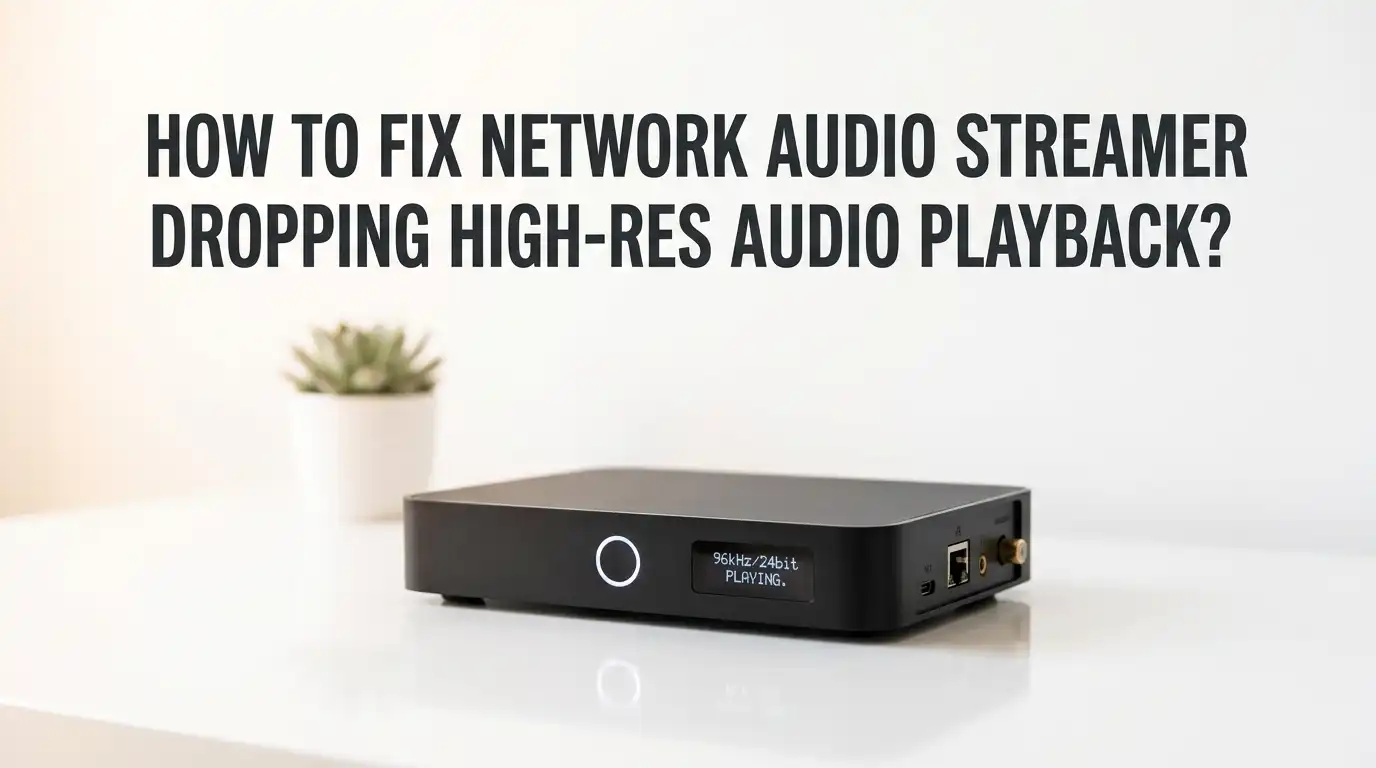
How To Fix Network Audio Streamer Dropping High-Res Audio Playback?
Few things ruin a quiet listening session faster than a sudden gap in the music. You press play on a beautiful 24bit/192kHz track, the sound fills the room, and then it stutters.
The audio cuts out for a second, then comes back. This problem frustrates many music lovers, and the cause is rarely the music file itself.
Most dropouts come from your network, your settings, or your gear working harder than it should. The good news is that you can fix almost all of these issues at home. You do not need expensive tools or deep technical skills. You just need a clear plan and a little patience.
In a Nutshell:
- Hi-res files demand more bandwidth. A 24bit/192kHz track carries far more data than a standard stream, so any weak link in your network shows up as a dropout.
- Wired Ethernet beats WiFi for stability. A direct cable connection removes interference and gives your streamer a steady data flow, which is the single best fix for most people.
- Buffer settings act as a safety cushion. A larger buffer stores more audio ahead of time, so brief network hiccups do not interrupt your playback.
- Firmware and app updates fix hidden bugs. Many dropout problems trace back to outdated software on your streamer, DAC, or control app.
- Network congestion is a common hidden cause. Other devices streaming video or downloading files can steal bandwidth and starve your audio stream.
- Sample rate mismatches confuse some gear. Your DAC must support the file’s bit depth and sample rate, or the playback will stutter and skip.
Understand Why High-Res Audio Drops Out
High-res audio carries a huge amount of data. A standard CD quality track moves about 1,411 kilobits per second. A 24bit/192kHz file pushes far beyond that. This larger size puts pressure on every part of your system.
When the data cannot reach your streamer fast enough, the playback runs out of audio to play. This empty moment is what you hear as a dropout. The streamer waits, then resumes once new data arrives.
The problem is almost never the music file itself. Instead, it lives in the path the data travels. Your router, your network cables, your WiFi signal, and your streamer’s processing power all play a role.
Understanding this helps you target the real cause instead of guessing. Once you know the data must arrive steadily and quickly, every fix in this guide makes sense.
Restart Your Streamer, Router, And Network Devices
Always start with the simplest fix. A full restart clears temporary errors and refreshes connections. Many dropout problems vanish after a clean reboot of your gear.
Turn off your streamer, your router, and your modem. Unplug them from power. Wait about 30 seconds. Then power them back on in order: modem first, router next, and streamer last. This order lets each device find a fresh connection.
Reboots cost you nothing and take only a few minutes. They solve issues caused by memory leaks, stuck processes, and overloaded network tables.
Pros: This method is fast, free, and fixes a surprising number of problems instantly.
Cons: The fix is often temporary. If a dropout returns within hours or days, you have a deeper issue. In that case, treat the reboot as a starting point and move on to the next sections for a lasting solution.
Switch From WiFi To A Wired Ethernet Connection
WiFi is convenient, but it struggles with high-res audio. Walls, microwaves, neighboring networks, and even Bluetooth devices can interfere with the signal. These interruptions cause the data flow to stall.
A wired Ethernet connection removes almost all of these problems. The cable gives your streamer a direct, steady path to the router. This is the single most effective fix for dropout issues.
Run an Ethernet cable from your router to your streamer. Use a quality cable rated Cat 5e or higher. Most listeners notice an immediate improvement in stability after switching.
Pros: Ethernet offers rock-solid reliability, lower latency, and no interference. It easily handles even the largest hi-res files.
Cons: You need a cable run, which can be hard in some rooms. Running a long cable across a living space looks messy. If wiring is not possible, a powerline adapter or a mesh node placed near the streamer can serve as a strong backup.
Improve Your WiFi Signal Strength And Placement
If you must use WiFi, make the signal as strong as possible. A weak signal forces your streamer to keep re-requesting lost data, which creates gaps. Signal strength matters more than raw internet speed here.
Move your router closer to your streamer if you can. Keep it off the floor and away from metal objects, thick walls, and other electronics. A clear line of sight between the router and the streamer works best.
Use the 5GHz band instead of 2.4GHz when your streamer supports it. The 5GHz band carries more data and faces less interference, though its range is shorter.
Pros: Better placement is free and can dramatically reduce dropouts without new gear.
Cons: WiFi remains less stable than a cable, no matter how strong the signal. Thick walls and long distances still cause problems. A WiFi extender or mesh system helps, but adds cost and can introduce its own delays if set up poorly.
Increase The Buffer Size On Your Streamer Or App
A buffer is a small store of audio that loads ahead of playback. It acts as a cushion. When the network slows for a moment, the buffer keeps the music playing. A larger buffer gives you more protection against brief interruptions.
Open your streamer’s settings or your control app. Look for a buffer, cache, or pre-load option. Increase the value step by step and test playback after each change. Many apps like Roon and Audirvana let you adjust this directly.
Find the smallest buffer size that gives you smooth playback. This balances stability with a quick response when you skip tracks.
Pros: A bigger buffer smooths over short network glitches and is easy to change.
Cons: A very large buffer adds a delay when you start a track or skip songs. It also masks the real problem instead of solving it. If you need a huge buffer to stop dropouts, your network likely needs deeper attention.
Update Firmware On Your Streamer And DAC
Outdated firmware causes many dropout problems. Manufacturers release updates to fix bugs, improve buffering, and add support for higher sample rates. Running old software leaves these fixes out of reach.
Check your streamer’s app or web settings for a firmware update option. Install any available version. Do the same for your DAC if it connects over USB or network. Some DAC dropouts at high sample rates come from firmware bugs alone.
Always keep your streamer plugged in during an update. A power loss mid-update can damage the device.
Pros: Updates often fix dropout bugs that no other method can address. They are free and supported by the maker.
Cons: Rare updates introduce new bugs, as some iFi and other owners have reported after certain releases. If a new dropout starts right after an update, check forums and consider rolling back to a stable version if the maker allows it.
Set Up Quality Of Service (QoS) On Your Router
Your network carries many types of traffic at once. Video streams, downloads, and game data all compete for bandwidth. When audio loses this race, it drops out. Quality of Service, or QoS, fixes this by giving your audio priority.
Log into your router’s settings page. Find the QoS section. Add your streamer as a high-priority device, often by its IP or MAC address. This tells the router to serve audio data first.
Brands like TP-Link, Netgear, and Asus all include QoS tools in their settings.
Pros: QoS protects your audio stream during busy network times. It is built into most modern routers at no extra cost.
Cons: QoS helps most when your bandwidth is limited or shared. On a fast, lightly used network, the benefit is small. Setup can also feel confusing, and a wrong setting may slow other devices. Read your router’s guide before making changes.
Reduce Network Congestion From Other Devices
Every device on your network shares the same connection. A phone downloading updates, a TV streaming 4K video, or a laptop backing up files can flood your network. This flood starves your audio stream of data.
Watch for dropouts that happen at busy times, like evenings. This pattern points straight to network congestion. Pause large downloads and heavy streams while you listen to high-res audio.
Schedule big tasks like backups and updates for overnight hours. This keeps your bandwidth free during listening sessions.
Pros: Managing other devices is free and often solves time-based dropouts completely. You gain a clear sense of what your network can handle.
Cons: This requires ongoing effort and some discipline from everyone in the home. It does not raise your total bandwidth. If your internet plan is simply too slow for many devices, you may need to upgrade your connection or add QoS as a permanent helper.
Check Your Sample Rate And Bit Depth Settings
Your DAC has limits. Each model supports a maximum sample rate and bit depth. If a file exceeds these limits, the DAC cannot play it cleanly. The result is stuttering, skipping, or silence.
Check your DAC’s specifications. Note the highest sample rate it supports, such as 96kHz, 192kHz, or 384kHz. Make sure your files and your streamer settings stay within these limits.
Some software upsamples audio to higher rates. If your DAC cannot keep up, turn off upsampling. Set your streamer to match the file’s native rate instead.
Pros: Matching sample rates removes a clear and common cause of high-res dropouts. The fix is permanent once set correctly.
Cons: You must understand your gear’s limits, which takes a little research. Turning off upsampling may disappoint listeners who prefer it. Still, native playback within your DAC’s range is the safest path to smooth sound.
Disable DSP, Upsampling, And Extra Processing
Digital signal processing, or DSP, adds load to your system. Upsampling, room correction, and complex filters all demand extra power. When your streamer or computer cannot keep up, the audio stutters.
Open your playback software. Turn off all DSP features one at a time. Test playback after each change to find the culprit. Heavy filters in apps like HQ Player or Roon often cause stutters at 192kHz.
Start with the simplest signal path possible. Add processing back only after you confirm smooth playback.
Pros: Disabling DSP frees up processing power and quickly reveals whether your gear is overloaded. It is a free and reversible test.
Cons: You lose the sound benefits that DSP can offer, like room correction. Some listeners value these features highly. If DSP causes dropouts, you may need a more powerful streamer or computer to run them, which adds cost.
Optimize Your NAS Or Music Server Settings
Many listeners store their music on a NAS or home server. If this device works too hard, it cannot send data fast enough. A slow or busy server causes the same dropouts as a slow network.
Avoid transcoding when possible. Transcoding forces the server to convert files on the fly, which uses heavy processing. Set your server to stream files in their native format instead.
Keep your NAS firmware current and limit other tasks running on it during playback. A NAS dedicated to serving files performs far better than one juggling many jobs.
Pros: A well-tuned server delivers files instantly and removes a hidden dropout cause. Native streaming uses less power.
Cons: Some setups require transcoding for compatibility. Disabling it may stop certain files from playing on some devices. Upgrading a weak NAS can be expensive, so first confirm the server is truly the bottleneck before spending money.
Use Quality Network Cables And A Dedicated Switch
Cables and switches form the backbone of your network. A damaged Ethernet cable can drop your speed without warning. A worn cable might fall back to a slow 10 megabit mode, which cannot handle hi-res audio.
Replace old or kinked cables with fresh ones rated Cat 5e or higher. Check each connection point for a snug, clean fit. A loose plug causes random, hard-to-trace dropouts.
A dedicated network switch can also separate your audio gear from busy household traffic. This gives your stream a cleaner path.
Pros: Good cables are cheap and rule out a common physical cause. A switch adds order and can lower interference for sensitive setups.
Cons: Cable swaps fix only physical faults, not software or congestion issues. A switch adds another device to manage and power. Spend here only after you confirm a cable or connection fault, since premium audio cables rarely fix true network problems.
Test With Different Software And Streaming Services
Sometimes the fault lies in the software, not the hardware. A buggy app or a troubled streaming service can cause dropouts that look like network faults. Testing different sources helps you find the real source.
Play a local file stored on the streamer or a USB drive. If it plays smoothly, your network or your streaming service is the problem. Then try a different service, like switching from one provider to another.
Test a different control app or playback program too. This isolates whether your current software is the weak link.
Pros: This method narrows down the cause quickly and costs nothing. It tells you whether to focus on the network, the service, or the app.
Cons: Testing takes time and patience. You may need trial accounts or extra apps. If one service drops out while others play fine, the issue may rest with that provider, and you have little control over their servers.
Frequently Asked Questions
Why does only high-res audio drop out while CD quality plays fine?
High-res files carry far more data than CD quality tracks. A 24bit/192kHz file needs much more bandwidth and processing power. Your network or gear handles the smaller CD files easily, but struggles with the larger ones. This is why dropouts appear only at higher resolutions. Focus your fixes on bandwidth, buffering, and your DAC’s sample rate limits.
Is Ethernet really better than WiFi for high-res streaming?
Yes, for stability it is. Ethernet gives a steady, direct data path with no interference. WiFi faces walls, signal drops, and competing networks that cause gaps. While good WiFi can work, a wired connection removes the most common dropout causes. If you can run a cable to your streamer, this is the most reliable fix available.
Will a faster internet plan stop my audio dropouts?
Not always. Most dropouts come from your home network, not your internet speed. A weak WiFi signal, network congestion, or an outdated streamer causes more problems than slow internet. A faster plan helps only if your current bandwidth is truly maxed out. Fix your local network first, then consider an upgrade if dropouts continue.
How big should my buffer size be?
There is no single right answer. Start with the default, then increase it slowly until playback stays smooth. A larger buffer protects against brief glitches but adds delay when you skip tracks. Find the smallest size that gives steady playback. If you need a very large buffer to stop dropouts, fix your network instead, since a buffer only hides the real issue.
Can old firmware cause high-res audio dropouts?
Yes, often. Manufacturers fix buffering bugs and add sample rate support through firmware updates. Running old software leaves these fixes out. Always keep your streamer and DAC firmware current. If dropouts start right after an update, a new bug may be the cause, so check support forums and consider rolling back to a stable version if your maker allows it.
Do expensive audio network cables fix dropouts?
Usually not. Standard cables rated Cat 5e or higher carry data perfectly well for hi-res audio. Dropouts come from damaged cables, weak signals, congestion, or software, not from a lack of premium cabling. Replace any worn or faulty cable with a quality basic one. Spend your effort on network stability and settings rather than costly audiophile cables for fixing dropout problems.

Hi, my name is Lily you can say i am a gadget hunter at this point. Welcome to Gadget Gallery The Gallery of Gadget Reviews