How to Fix a Digital Drawing Tablet That Is Registering Ghost Touches?
Your drawing tablet should follow your hand, not act on its own. But sometimes the cursor jumps, lines appear from nowhere, and the pen draws even when you are not touching the surface.
These random inputs are called ghost touches, and they can ruin hours of work. The good news is that most ghost touch problems have simple fixes you can try at home.
This guide walks you through every cause and every solution in plain steps. Whether you use a Wacom, Huion, XP-Pen, or any other brand, the methods here will help you bring your tablet back to a clean, accurate state.
Key Takeaways
- Ghost touches come from many sources. The cause can be a dirty surface, a damaged pen nib, a faulty cable, electromagnetic interference, or outdated drivers. You need to test one fix at a time to find the real problem.
- Always start with the simple checks first. Clean the tablet, swap the nib, restart the computer, and reseat the cable before opening any settings. Most ghost touch reports get solved at this basic stage.
- Drivers matter more than people think. A fresh driver install removes corrupted files that send false signals. Uninstall the old driver completely before adding the new one.
- Electromagnetic interference is a real cause. Phones, speakers, wireless chargers, and even monitors can confuse the tablet sensor. Move these items away from your work area.
- Hardware failure is the last suspect. If software fixes do not help, the digitizer or sensor may be damaged. A warranty claim or repair is the right next step.
- Prevention is easier than repair. Keep the tablet clean, store the pen upright, and update drivers every few months.
What Are Ghost Touches on a Drawing Tablet
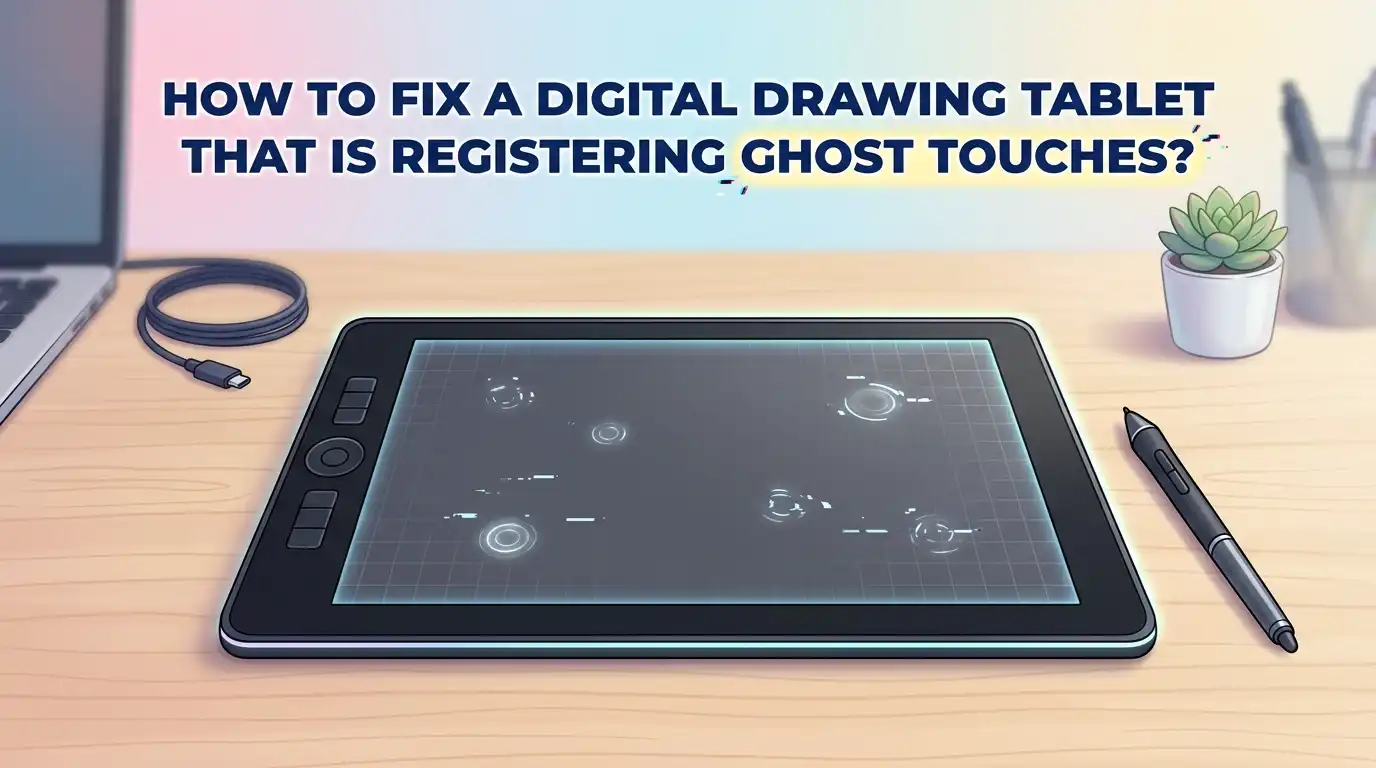
Ghost touches are inputs that the tablet records without any real action from you. The cursor may jump across the screen, lines may appear in random places, or the pen may draw while floating above the surface.
Some artists call this phantom input, jitter, or rogue clicks. The tablet thinks something is touching it when nothing is. This problem affects both pen tablets and pen displays.
It also affects tablets with finger touch enabled. The cause is almost always electrical, physical, or software based. Once you know which category your issue falls into, the fix becomes much easier to find and apply.
Clean the Tablet Surface Properly
Dirt, oil, and dust on the tablet surface can trick the sensor into reading input. Skin oils leave a thin conductive layer that the tablet may treat as a finger touch. Crumbs and dried liquid can also press into the surface and cause steady ghost taps.
Turn off the tablet first. Use a soft microfiber cloth and a small amount of isopropyl alcohol at 70 percent or higher. Wipe in slow circles across the whole drawing area. Do not spray liquid directly on the tablet.
Pay special attention to the edges where dust collects. Let the surface dry for two minutes before turning the tablet back on. Many users report that this single step removes the ghost touches right away.
Pros and cons of this method are simple. The pros are that it is free, fast, and safe for any tablet brand. The cons are that it only works for surface based ghost touches and will not fix internal hardware faults.
Check and Replace the Pen Nib
A worn, bent, or rough pen nib is one of the top causes of ghost drawing. When the nib has sharp edges or sits crooked in the pen, it can press against the sensor even when you lift the pen.
Reddit users on the Wacom and Remarkable forums often trace their ghost lines back to a damaged nib. Pull the nib out using the small ring tool that came with your tablet. Look at the tip under good light. If you see flat spots, cracks, or fuzz, replace it with a new one.
Always use nibs made for your exact tablet model. Push the new nib in firmly until it stops. Test the pen on a blank canvas to see if the ghost touches are gone.
Pros include very low cost and quick results. Cons are that nib packs run out fast for heavy users, and some brands sell replacements only in limited regions.
Update or Reinstall the Tablet Driver
Outdated and corrupted drivers cause a huge share of ghost touch problems. The driver tells your computer how to read the tablet, and if the file is broken, the readings will be wrong.
First, fully uninstall the current driver from your control panel or system settings. Restart the computer. Then download the latest driver from the official maker’s website. Install it as administrator.
Do not keep two tablet drivers on the same computer, because Wacom, Huion, and XP-Pen drivers often fight each other. After install, restart again and test the pen. Many users on the Affinity forum confirm that a clean reinstall stops phantom input within minutes.
The pros are that this fix is free and solves a wide range of issues. The cons are that you may need to set your pen pressure and shortcut buttons again after the new install.
Move Sources of Electromagnetic Interference Away
Drawing tablets use electromagnetic resonance to detect the pen. Other electronic devices send out their own electromagnetic fields, and these can confuse the tablet. Huion’s official support page lists this as a known cause of hover issues.
Common offenders are mobile phones, wireless chargers, Bluetooth speakers, mechanical fans, power strips, and large monitors. Move these items at least one to two feet away from the tablet.
Metal desks and metal pen holders sitting under the tablet can also cause ghost cursor jumps. Place a thin wooden board or a non metal mat under the tablet if your desk is metal. Test the tablet after each change to see which device was the source.
The pros are that no money or tools are needed. The cons are that you may have to rearrange your whole workspace, which takes time and trial.
Inspect the USB Cable and Port
A loose or damaged USB cable can send broken signals to the tablet, and broken signals often show up as ghost touches. Bent connectors, frayed wires, and worn pins are all suspects. Unplug the cable from both the tablet and the computer.
Look closely at both ends for damage. Try a different USB port on your computer, and if possible, use a port directly on the motherboard rather than a hub.
USB hubs without their own power supply often cause unstable signals. If you have a spare cable that fits, swap it in for a test. Many tablets use USB C now, and any good quality data cable will work.
Pros are that this test takes less than five minutes. Cons are that you may need to buy a new cable, and some tablet brands use special cables you cannot easily replace.
Adjust Pen Settings in the Tablet Software
Some ghost touches are not really faults but settings problems. For example, Wacom pens default to hover click on certain models, which makes the cursor act before you touch the tablet. Open your tablet software.
Look for the Pen tab or Options menu. Change the click mode from Hover Click to Click and Tap. Lower the pen tip feel sensitivity if light touches register too easily. Turn off Windows Ink if your art program does not need it, because Windows Ink and the tablet driver sometimes send double inputs.
Save the new settings and test the pen. Small setting changes often remove the problem completely without any hardware work.
The pros are that this method needs no tools and risks nothing. The cons are that the right setting depends on your brand, and finding it can take some searching.
Turn Off Finger Touch if You Do Not Use It
Many modern tablets have both pen input and finger touch input. When palm rejection fails, your hand resting on the tablet can register as ghost touches. This shows up as random clicks, jumping cursors, or sudden zoom changes in your art program.
Open the tablet driver and look for a Touch tab. Switch the touch input off completely. If you only draw with the pen, you will not miss this feature.
Some tablets also have a physical touch toggle button on the side, so check the hardware too. Wacom support recommends this fix for users who get unwanted input during remote sessions and normal work alike.
Pros are an instant stop to palm based ghost touches. Cons are that you lose pinch zoom and other touch gestures that some artists like.
Test the Tablet on Another Computer
Sometimes the ghost touches come from your computer, not the tablet. A faulty operating system file, a conflicting program, or a bad graphics driver can all create false input. Take your tablet and pen to a different computer.
Install the driver there and try to draw. If the ghost touches stop on the second computer, the problem is on your main system. If the ghost touches follow the tablet, then the tablet or pen is the real issue.
This single test saves hours of guessing. It also tells you whether to repair the tablet or fix the computer software.
The pros are clear answers with one quick test. The cons are that you need access to a second computer, which not everyone has at home.
Calibrate the Tablet and Reset Defaults
A wrong calibration can make the tablet report touches in the wrong spot, which looks like ghost input. XP Pen and Huion both include a calibration tool inside the driver app. Open the tablet software.
Find the Calibration tab. Click Default or Reset to clear any saved calibration. Then run a fresh calibration if your tablet is a pen display. Touch the small crosshairs that appear on screen with the pen tip.
A clean reset removes any odd offset that builds up over time. This step also fixes the offset problem where the cursor sits far from the pen tip, which some users mistake for ghost touches.
Pros are no cost and a quick reset. Cons are that calibration must be redone if you change monitors or screen resolution later.
Check for Pen Battery or Charging Issues
Most modern tablet pens are battery free, but some still use a small battery or built in charge. A weak battery can send unstable signals that look like ghost touches. If your pen has a removable battery, replace it with a fresh one.
If your pen charges by USB, plug it in until the light shows full charge. Some pens, like the Apple Pencil and certain Huion models, need a firmware update too.
Open the tablet app and check for pen firmware updates along with driver updates. A pen that has been dropped may also have internal damage that no charge can fix.
The pros are an easy check that takes only a minute. The cons are that pen batteries are not always sold separately, and a damaged pen often needs full replacement.
When to Contact Support or Replace the Tablet
If you have tried every fix above and the ghost touches still appear, the tablet hardware may be broken. Wacom support has confirmed in community posts that some Cintiq models develop sensor faults that only repair can solve.
Contact the maker’s support team. Send them a short video of the ghost touches in action. Have your serial number and purchase date ready. Most drawing tablets come with a one or two year warranty, and ghost touch faults usually qualify for free repair or replacement.
If your tablet is out of warranty, ask for a repair quote before buying a new unit. Some local repair shops can fix digitizer faults for less.
Pros of going to support are a real fix from trained staff. Cons are wait times of one to four weeks and possible shipping fees.
Tips to Prevent Ghost Touches in the Future
A few small habits will keep your tablet healthy for years. Wipe the surface every week with a dry microfiber cloth. Store the pen in its stand or case, never flat on the desk where it can roll and break.
Change the nib every two to three months if you draw daily. Keep phones and speakers off the tablet area. Update the driver every two to three months, even if the tablet works fine, because new updates fix bugs you have not yet seen.
Unplug the tablet during long breaks to prevent dust buildup in the port. These small steps stop most ghost touches before they ever start.
The pros are a longer tablet life and fewer art ruining surprises. The cons are that habits take time to build, and forgetting one step can let problems return.
Frequently Asked Questions
Why does my drawing tablet draw lines when I am not touching it?
The most common cause is a damaged or dirty pen nib that presses on the sensor while floating. Replace the nib and clean the tablet surface. Worn nibs send false pressure signals even when the pen is above the tablet. Driver issues and electromagnetic interference can also cause this same behavior.
Can a phone near my tablet cause ghost touches?
Yes. Phones send out electromagnetic and Bluetooth signals that confuse the tablet sensor. Move your phone at least one foot away from the drawing area. Wireless chargers and Bluetooth speakers cause the same problem and should also be moved.
Will reinstalling the driver delete my custom settings?
In most cases, yes. The new driver usually starts with default settings, so your pressure curve and shortcut keys will reset. Save a screenshot of your current settings before you uninstall, so you can rebuild them quickly after the new install.
How often should I change my pen nib?
Heavy daily users should change the nib every two to three months. Light users can wait six months or longer. Check the nib once a week for flat spots, cracks, or rough edges, and replace it as soon as you see damage.
Is finger touch always the cause of ghost touches?
No, but it is a common cause when palm rejection fails. Turning off finger touch in the driver stops these false inputs. If ghost touches happen with no hand on the tablet at all, the cause is something else, like the pen, driver, or interference.
Can I fix ghost touches without buying anything new?
Most of the time, yes. Cleaning the surface, reinstalling the driver, moving devices away, and changing settings cost nothing. Only nib and cable replacements need a small purchase. Hardware repair is the last and most expensive step.

Hi, my name is Lily you can say i am a gadget hunter at this point. Welcome to Gadget Gallery The Gallery of Gadget Reviews