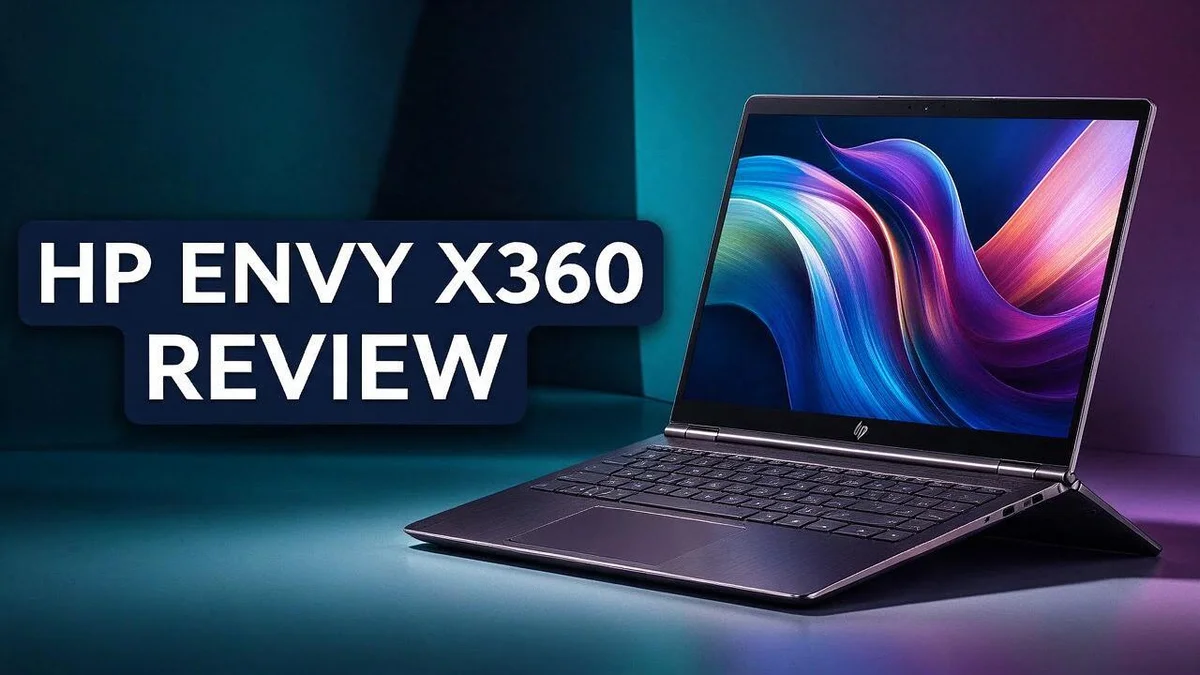
HP Envy x360 Review: Design, Performance, Display and Verdict
Looking for a laptop that works as both a tablet and a notebook? The HP Envy x360 might be the answer you need. It flips and folds into many modes. You can type, draw, or watch shows with ease.
Inside, you get an Intel Core i7-1355U processor. It also has 16GB of LPDDR5 memory and a 2TB SSD. The touchscreen shows sharp 1920×1080 visuals. Build quality feels solid, too.
Audio sounds good, and the keyboard feels comfortable for long typing sessions. Students often like its light, slim frame. But it is not perfect. Some reviewers found performance underwhelming, and a few owners reported hinge problems.
In a Nutshell
- Built for students: The slim and light frame makes it simple to carry between classes, the library, and home. Students can pack it in a bag without adding much weight.
- Smooth multitasking: With 16GB of memory, you can keep many browser tabs, notes, and apps open at the same time. This helps when you switch between schoolwork and entertainment.
- Plenty of storage: The 2TB SSD holds large files, photos, and video projects. You will not need to delete files often to free up space.
- Pick your screen size: The 14 inch model offers an OLED display, which many people find vivid and sharp. It also gives you a good selection of ports for daily work.
- Watch the hinge: Some owners report hinge breakage, so handle the screen gently when you flip it into tablet mode. Careful use can help the device last longer.
- Test the speed first: A 2024 review called the performance underwhelming, so heavy gaming or video editing may feel slow. Compare it with rivals like the Lenovo Flex 5, Dell Inspiron, and Acer Spin 3 before you decide.
Design and Build Quality
No products found.
The HP Envy x360 has a clean and modern look. Its simple lines fit well in a classroom, an office, or a living room. Many people like how neat it appears on a desk.
Build quality tells a mixed story. Many reviewers say the chassis feels solid and well put together. However, some owners describe the build as fragile, which raises questions about durability over time.
Port selection matters too. The 14 inch OLED model offers a good mix of connections, so you may need fewer adapters. This helps when you use a mouse, a drive, or an external monitor.
Weight and portability deserve a closer look. The lightweight frame helps when you carry the laptop all day. Pair it with a padded sleeve, and you protect the screen from bumps in your bag.
Screen size changes the feel too. The 15.6 inch model offers more room for spreadsheets, but it takes up more space in a bag. The 14 inch model feels easier to carry between classes.
Hinge durability is the biggest worry for many buyers. One 2024 owner called the laptops a quality nightmare after problems appeared.
That single review is harsh, but it shows why you should check the warranty before you commit.
Quick checks in person help you judge the build. Open and close the lid slowly. Press the keyboard deck and watch for flex. Listen for creaks as the screen moves.
Think about how you will use the laptop each day. If you flip it often, sturdy build matters more. If it mostly sits on a desk, the hinge concerns matter less.
Overall, the design balances style and portability. It looks sleek and carries easily. A test in person gives you the clearest answer. Still, you should read recent owner feedback before you buy.
Display and Touchscreen Experience
The touchscreen changes how you use this laptop. You can tap links, scroll pages, and swipe through photos with your fingers. Many people find this faster than using the trackpad alone.
The 15.6 inch screen uses LED backlighting. Colors look clear in a bright room, and text stays easy to read during long study sessions. Small fonts also stay sharp when you zoom in.
Glare is the main thing to watch. Like many touchscreens, the glossy surface can reflect lamps and windows. Try sitting with light coming from the side rather than from behind you.
Touch controls matter more in tablet mode. When you fold the screen back, the display becomes your main way to interact. Simple actions feel quick. Opening apps, zooming into maps, and moving windows all respond well to a finger.
Note taking becomes easier with touch. You can highlight text on web pages or mark up documents with your finger. Students often use this for class notes, quick sketches, and reading assignments.
The screen also works well for sharing. Two people can watch a video or review a project together. Tilting the lid slightly helps the view for the person sitting beside you.
Keep the screen clean for the best look. Fingerprints show up quickly on glossy glass. Use a soft microfiber cloth and a light touch to wipe away smudges.
Brightness control helps with battery life. Lower brightness saves power when you read on the go. Raise it outdoors so the screen stays visible. Many people turn on automatic brightness so the display adjusts to the room.
Check the screen in person before you buy. Open a few videos and web pages in the store. Look at color, brightness, and touch response in both laptop and tablet modes.
Performance and Everyday Multitasking
Everyday work feels smooth on this laptop for most people. Email, documents, and web research run without much fuss.
Video calls are a strong fit. Meetings and screen sharing work well, so students and hybrid workers can stay connected.
Heavy tasks reveal the limits. Long video renders and demanding games may push this machine past its comfort zone. Keep those jobs for a desktop.
Laptops like this can warm up during long sessions. Place it on a hard surface so air can flow under the base.
Keep the charger nearby. Heavy workloads drain the battery faster, so plug in when you start a big project.
Windows 11 wakes from sleep quickly. You can open the lid and pick up your work without a long wait.
Background updates and cloud sync can slow things down. Close apps you do not need to keep the screen responsive.
The 6E wireless standard helps with video streaming and large cloud files. Your router must support it to see the gain.
Browser-heavy work can test any laptop. Many open tabs may slow things down over time, so restart the laptop each week to clear memory.
Multitasking with a touchscreen can feel different. Switching between apps by touch takes a little practice, but it soon feels natural.
Run a real day test. Use the laptop for your usual tasks for a few days. This shows whether the speed fits your routine.
Keep software updated for steady performance. Driver and Windows patches can improve speed over time.
Compare this laptop with your current one before you decide. If your old machine feels fast, this one may feel similar or slower for heavy tasks.
Overall, this laptop handles daily life well. It suits school, office, and home tasks, while heavy creative work needs a stronger machine.
Top 3 Alternatives
Lenovo Yoga 7i

Last update on 2026-11-06 / Affiliate links / Images from Amazon Product Advertising API Some of the links on this website are affiliate links, which means that at no additional cost to you, I earn a commission if you click through and make a purchase. I only recommend products and services that I believe will add value to my readers. Thank you for your support!
The Lenovo Yoga 7i is a flexible laptop that adapts to your day. Its 360-degree hinge lets you use it as a laptop, tablet, or stand. Many people enjoy its bright display and clean design. The battery lasts through a full day of work or classes. It works well for note-taking. The included pen helps you sketch ideas and mark up documents.
Dell Inspiron 2-in-1

Last update on 2026-11-06 / Affiliate links / Images from Amazon Product Advertising API Some of the links on this website are affiliate links, which means that at no additional cost to you, I earn a commission if you click through and make a purchase. I only recommend products and services that I believe will add value to my readers. Thank you for your support!
The Dell Inspiron 2-in-1 gives you a laptop and a tablet in one device. Its touchscreen responds quickly to taps and swipes. You can fold the screen back to watch videos or share photos with friends. The keyboard feels comfortable during long typing sessions. It suits students and families. Setup takes only a few minutes, so you can start right away.
ASUS Vivobook Flip

Last update on 2026-10-18 / Affiliate links / Images from Amazon Product Advertising API Some of the links on this website are affiliate links, which means that at no additional cost to you, I earn a commission if you click through and make a purchase. I only recommend products and services that I believe will add value to my readers. Thank you for your support!
The ASUS Vivobook Flip is a compact choice for everyday tasks. Its hinge flips the screen into tent or tablet mode. You can browse the web, stream shows, or edit documents on the go. The light body makes it easy to carry to class or the office. It keeps your workflow simple. Pick this model if you want a versatile laptop that moves with you.
Connectivity, Ports and Wireless
Connectivity shapes how you use this laptop each day. Think about the devices you plug in most often. Most people connect a mouse, a printer, and a second screen.
Plan your desk setup before you buy extras. A small hub can add room for more devices. Keep a spare cable in your bag for trips.
An external monitor can widen your workspace. Link the laptop to a larger display for spreadsheets or research. Choose the cable that matches your monitor first.
Set the display mode after you connect. Windows lets you duplicate or extend the screen. Open the display settings and pick the layout you like.
Wireless accessories give you more freedom. Most people pair a keyboard, mouse, or earbuds through Bluetooth. Pairing takes only a moment when devices sit close together.
Keep wireless devices charged for daily use. Low batteries can cause dropped links during meetings. Check battery levels before you start a class or call.
Your router affects your connection more than you think. Walls and distance can weaken the signal. Sit closer to the router when you need a strong and steady link.
Mesh systems can fill dead spots at home. A mesh setup spreads coverage across more rooms. It works well in larger homes or older buildings.
A mobile hotspot keeps you online on the go. Turn on the hotspot on your phone, then connect the laptop. Video calls use more data, so watch your plan.
Airplane mode saves power on long trips. Open the quick settings panel to switch wireless features off. Turn them back on when you land or need a signal.
Restart your network when calls start to lag. A quick restart often clears small glitches. Move closer to the router if the lag returns.
Test your setup before an important day. Run a quick speed test at your desk and in other rooms. Note the spots that work best for you.
Keyboard and Audio
Typing feels natural on this laptop. A 2024 review described the keyboard as responsive. That matters when you write essays, emails, or long reports every day.
The keys give you a clear response when you press them. Your fingers can settle into a steady rhythm. This helps you stay focused on your words instead of the keyboard.
Keep the laptop on a flat surface while you type. A stable base keeps your wrists comfortable during long sessions. Your hands will thank you after a busy day.
Good typing also depends on how you sit. Keep your elbows near your sides and your screen at eye level. Small changes can reduce strain and help you write for longer.
Give the keys a quick test before you commit to long projects. Type a short paragraph and notice how the keys respond. This simple check shows whether the feel suits your style.
Audio sounds clear for everyday tasks. A 2024 review noted good sound from this model. Clear audio helps when you watch lessons, listen to podcasts, or play short videos.
Voices come through well, so dialogue in shows is easy to follow. The speakers suit a quiet room or a small desk area. Louder spaces may need headphones for better focus.
Placement changes how sound feels. Sound bounces off nearby surfaces. A hard desk can make audio seem fuller. Avoid covering the speaker area with your hands or a blanket. Simple placement tweaks can improve clarity.
Wired headphones work well for private listening. They also keep your audio clear during class or study time without disturbing others.
Clean the keys often with a soft cloth to keep them looking fresh. Dust can collect under the keycaps over time, so a gentle brush helps.
Students who take notes will enjoy this setup. Writers and hybrid workers can also rely on steady typing. Both features make daily work easier.
Pros and Cons
Pros
– The flip design turns the laptop into a tablet for notes and sketches.
– Touchscreen taps respond quickly, so scrolling feels smooth.
– The slim frame slides easily into a backpack for class.
– The 14 inch model adds an OLED display that makes movies look rich.
Cons
– Some owners report that the hinge can break over time.
– One 2024 owner called the laptops a quality nightmare.
– Model options vary, so check the specs carefully before you buy.
Who Should Buy It
This laptop suits people who want light, everyday computing. Many buyers need a simple machine for email, web browsing, and documents. This model handles those tasks well.
Students often fit the profile best. The lightweight body feels comfortable during long school days. Notes, research, and online classes run smoothly on it.
Remote workers may also find it useful. Video calls and cloud documents feel steady. Light multitasking works well, but heavy workloads may strain it.
Photo lovers can use the generous storage. A large drive keeps big photo libraries, music, and project folders on one device. This helps people who hate deleting files.
Windows users who need a work setup will appreciate the software. Windows 11 Pro includes business features and security tools. These options suit people who connect to office networks or handle sensitive files.
Heavy creators should look elsewhere. Video editing, 3D modeling, and modern gaming need more processing power and better cooling. Buyers in these areas may feel limited by this machine.
Careful handling matters with this design. Frequent travelers should protect the screen and hinge with a sturdy sleeve. Gentle use helps the laptop last longer.
Comparing rivals gives you a clearer picture. Many shoppers look at the Lenovo Flex 5, Dell Inspiron, and Acer Spin 3 before deciding. Each one offers a different balance of performance, build, and design.
In short, this laptop fits casual users best. Students, home users, and light office workers will likely enjoy it most. Anyone who needs strong performance should consider a more powerful option.
Final Verdict
The HP Envy x360 earns a spot on the shortlist for casual users. Its flexible design, sharp touchscreen, and slim frame make daily tasks feel simple.
Performance is the biggest question mark. A 2024 review called it underwhelming, so expect slower results during heavy multitasking.
Processor choices may vary across versions. The lineup includes Intel and AMD options from different years. Older units may use different chips, so confirm the processor before you buy.
Compare it with close rivals first. The Lenovo Flex 5, Dell Inspiron, and Acer Spin 3 all compete in this space. Each one offers a different mix of strengths.
Line up the specs side by side. Check the processor, memory, and screen brightness on each model. This quick step helps you spot the best fit.
Read recent owner feedback. Newer comments give a clearer picture than older ones. Look for notes about reliability after several months of regular use.
Check the warranty and return policy. A clear return window gives you time to test the laptop at home. Ask the seller about support options before you purchase.
Try the touchscreen in person when possible. Hands-on time shows whether the screen size suits your habits.
Think about how long you plan to keep it. A laptop that handles today’s apps may struggle in a few years. Plan for software updates and future school or work demands.
The final call depends on your daily routine. If you need a light and flexible machine for school or home, this model fits well.
Gamers and developers may want stronger parts. Heavy workloads need more muscle than this laptop shows in the research.
Overall, the HP Envy x360 offers a balanced mix. It brings flexibility and portability, but performance trade offs exist.
Final tip for buyers. Read the specs carefully and match them to your needs. You can then decide with confidence and avoid surprises later.
Frequently Asked Questions
Is the HP Envy x360 good for gaming?
Not really. Modern games need more graphics power than this laptop offers. Light games and older titles may still run well, so check the game’s requirements before you install it.
Is 16GB of memory enough for multitasking?
For most students and office users, yes. Many open tabs, documents, and video calls run smoothly at the same time. Heavy photo or video projects may feel tight over time, so plan your workload before you buy.
How can I check which processor my model uses?
Open Settings, then select System, then About. The processor name appears near the top of the page. This step helps you match your exact model with the right reviews and comparisons.
How can I protect the hinge from wear?
Open the screen with two hands and avoid pulling on one corner. Keep the laptop away from heavy bags and pressure. Gentle handling every day can help the hinge last longer.
Which screen size suits me best?
The 15.6 inch model gives you more room for spreadsheets and side-by-side windows. The 14 inch model fits more easily into small bags and crowded desks. Think about where you use the laptop most, then choose the size that fits that routine.

Hi, my name is Lily you can say i am a gadget hunter at this point. Welcome to Gadget Gallery The Gallery of Gadget Reviews