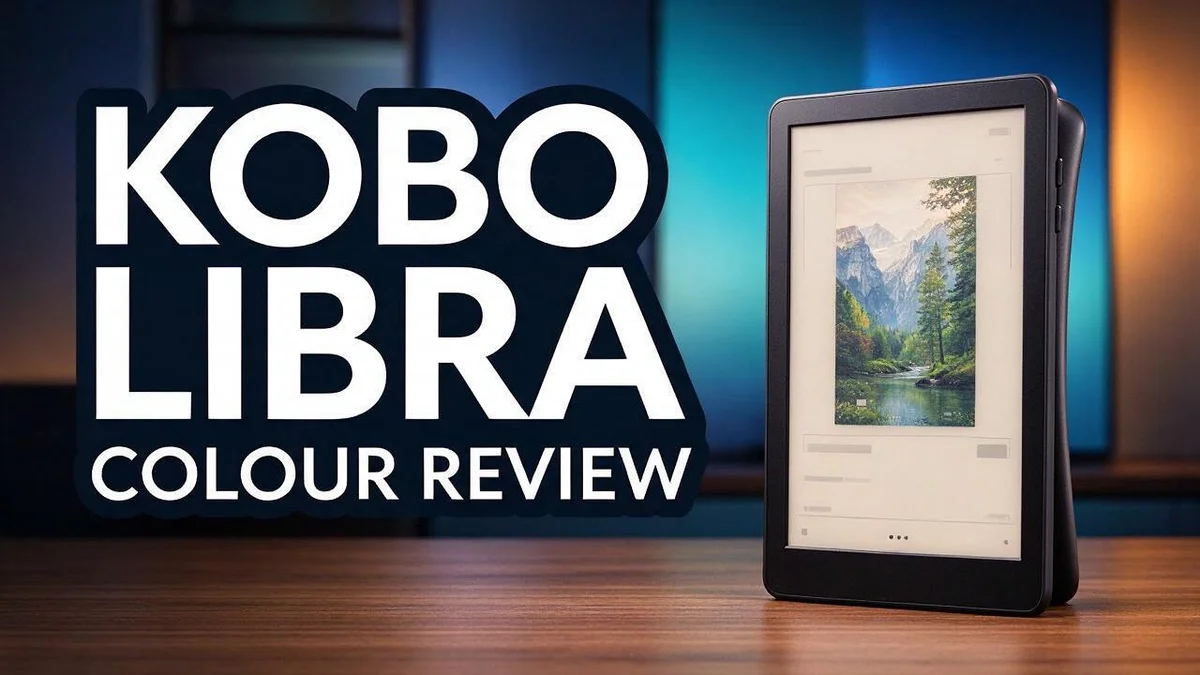
Kobo Libra Colour Review: Is This Colour E-Reader Worth It?
Looking for an e-reader that shows colour? The Kobo Libra Colour brings a bright 7-inch screen to your reading life. It works well for comics, picture books, and colour text titles.
The device has a front light and two side buttons for turning pages. Many readers enjoy pressing physical buttons instead of tapping the screen.
Text looks sharp and close to a printed page. However, colour E Ink shows more ghosting than classic black and white screens. Warmer tones and weaker contrast may also stand out.
Want to mark up pages? An optional stylus makes highlighting and notes simple. Is this the right pick for you? Let’s explore the pros, the cons, and how it compares with rivals like the Kobo Clara BW and Boox Go Color 7.
In a Nutshell
- Who it suits best: Readers who enjoy comics, picture books, or colour magazines will get the most from this device. Those pages come alive in colour.
- A small trade off: Colour E Ink shows more ghosting than a standard black and white screen. Fast page turns may leave faint traces behind.
- Warmer screen tone: The display leans warm and offers weaker contrast. Some readers may notice this after long reading sessions, especially at night.
- Lower pixel density: Reports suggest the pixel count sits below the Kobo Clara BW. Small print may look slightly softer than on that model.
- Mostly black and white reading: Colour is rarely used for standard novels. Many people read mostly in black and white, so the colour screen may feel like extra room they do not need.
- Other options to compare: Many shoppers also look at the Boox Go Color 7, the Boox Go 7 BW, and the Amazon Kindle Oasis. Compare these choices before you decide.
Display and Reading Comfort

Last update on 2026-10-31 / Affiliate links / Images from Amazon Product Advertising API Some of the links on this website are affiliate links, which means that at no additional cost to you, I earn a commission if you click through and make a purchase. I only recommend products and services that I believe will add value to my readers. Thank you for your support!
Reading comfort starts with the screen. A good display keeps your eyes relaxed during long sessions. This section looks at how the screen feels in daily use.
The front light lets you read in dark rooms. You can adjust the brightness with a simple slider. Many readers set it low at night to avoid harsh glare.
Glare is a common problem with tablets. E Ink reflects light like real paper does. Reading outside in shade feels natural and easy on the eyes.
Font controls matter too. You can change font size, line spacing, and margins. Small changes make a big difference for tired eyes.
E Ink refreshes the page each time you turn it. Each flip shows a brief flash. Most readers stop noticing it after a few chapters.
Brightness also affects battery life. Dimming the light helps the device last longer between charges. Keep the light at a medium level for most days.
Colour settings can change how pages look. Some readers prefer grayscale for chapters full of text. Switching modes takes only a few taps.
Night reading deserves extra care. Lower brightness keeps the room calm and dark. Your eyes adjust more easily before bed.
Page layout also shapes comfort. Wider margins give your eyes a rest. Some readers prefer tighter spacing for dense nonfiction books.
Test the device in different places first. Try your bedroom, kitchen, and a sunny window. This shows whether the screen suits your habits.
Long reading sessions need breaks too. Look up every twenty minutes at something far away. This simple habit eases strain on any screen.
Your reading habits matter most. Short daily sessions feel different from long weekend marathons. Pick settings that match how you read each day.
Comfort depends on your own eyes and routine. The Kobo Libra Colour gives you plenty of control. Adjust settings until pages feel natural to you.
Take notes of what feels right. Write down your favourite brightness and font size. This saves time when you change books.
Colour Performance and Ghosting
Colour pages show ghosting more clearly. Plain text hides faint marks well. Comics and magazines with large coloured areas reveal them faster. You may notice a light shadow of the last image after a few page turns.
Flipping through a picture-heavy book can feel slower, too. Colour screens often take a little longer to refresh. Quick page turns may show a brief flash or blur before the image settles.
A full refresh helps clear faint traces. Look for a refresh option in the reading settings. Many readers run one after a chapter or a long magazine spread. This keeps pictures crisp and cuts down on leftover marks.
Light changes how colours look, too. A bright front light can wash out pale tones. A low setting can make blues and greens look dull. Try a few levels before you settle on one.
Side buttons make picture books easier to handle. You can turn pages with one thumb while holding the device in one hand. This matters when a wide spread fills the screen. Quick taps keep the story moving.
Stylus markup needs care on coloured pages. A yellow highlight may blend into a yellow background. Choose a shade that stands out from the artwork. Test one page first so your notes stay easy to read.
Dark scenes need extra attention. Night comics often look muddy on this screen. Shadows can merge into one grey patch. Turn the brightness up a little for those pages. Then look at the page again to see the detail.
Ghosting also depends on how often you switch content. Jumping between text and colour pages may leave more marks. Reading one colour book at a time often keeps the screen cleaner. Plan your reading order for better results.
Simple checks make a big difference. Open your favourite comic or magazine first. Scroll through several pages and watch for ghosting. Trust your own eyes, because every reader sees colour a little differently.
Stylus, Markup and Page Controls
The stylus opens a new way to read. Readers can mark up pages with a pen instead of tapping every word. This feels close to writing in a paper book. Markup feels natural from the first session.
Pairing comes first. The stylus connects over Bluetooth, so set it up before your first reading session. Keep it charged so the pen never stops mid-chapter.
Short notes work best. Write a quick thought in the margin, then move on. Long handwriting can slow you down and fill the screen fast.
Highlights stay in one place. Every mark you make gathers in a single list. Review them later when you study a topic or prepare for a book club talk.
Fingers can leave oily marks on glass screens. A stylus keeps your hands off the display. Your pages stay cleaner, and your reading feels more calm.
Small menu buttons can feel fiddly with a thick finger. The pen tip hits them with more accuracy. Use it to open settings, bookmarks, and dictionary lookups.
Page controls give you a second option. Some readers prefer touch gestures for quick flips. Others stick with physical buttons for steady, hands free reading. Try both to see which feels natural.
Your grip changes how you turn pages. Rest your thumb on the edge and keep your pen hand free. Readers who write with the left hand can test both sides before settling on a routine.
Practice matters more than settings. Spend ten minutes marking a sample page. Your strokes will feel smoother by the second chapter.
Erasing mistakes is quick. Mistakes happen on any page. Check the eraser or undo option in your markup menu so you can fix a stray line in seconds.
Check whether your menu lets you pin favourite tools. Quick access keeps your reading flow smooth. Simple habits make markup a pleasure, so start small, stay patient, and let the stylus become a natural part of your reading.
Top 3 Alternatives
Kindle Colorsoft


Last update on 2026-10-31 / Affiliate links / Images from Amazon Product Advertising API Some of the links on this website are affiliate links, which means that at no additional cost to you, I earn a commission if you click through and make a purchase. I only recommend products and services that I believe will add value to my readers. Thank you for your support!
The Kindle Colorsoft gives readers a full color screen. It works well for comic books, picture books, and magazines. Colors look bright and clear on every page. It also has an adjustable warm light for night reading. Readers who love the classic Kindle feel will find it familiar.
Kindle Paperwhite

Last update on 2026-10-21 / Affiliate links / Images from Amazon Product Advertising API Some of the links on this website are affiliate links, which means that at no additional cost to you, I earn a commission if you click through and make a purchase. I only recommend products and services that I believe will add value to my readers. Thank you for your support!
The Kindle Paperwhite is a strong pick for text-heavy reading. Its screen stays sharp and easy on the eyes. It has a built-in adjustable light, so you can read in dark rooms. It is also water resistant, which helps at the pool or beach. If you mostly read novels and prefer black and white text, this model fits well.
Boox Go Color 7

Last update on 2026-10-13 / Affiliate links / Images from Amazon Product Advertising API Some of the links on this website are affiliate links, which means that at no additional cost to you, I earn a commission if you click through and make a purchase. I only recommend products and services that I believe will add value to my readers. Thank you for your support!
The Boox Go Color 7 suits readers who want more control. It runs on an open Android system, so you can install other reading apps. This gives you more freedom over your files and tools. The color screen works well for textbooks, notes, and sketches. Pick this option if you want a flexible device for study and work.
Browser and Everyday Use
Beyond books, the Kobo Libra Colour also includes a built in browser. It gives you a quick way to check articles, recipes, or saved web pages.
Simple web pages work best on this screen. Sites with mostly text and few images read more smoothly than crowded pages full of ads.
Pages with lots of moving parts can feel slow. E Ink is not built for fast scrolling, so you move through a page in small steps. Patience helps here.
Long articles often feel the most natural on this device. The clean layout removes clutter, so your eyes can follow one column of text from top to bottom.
Think of the browser as a reading tool, not a laptop replacement. Use it to catch up on saved reading during a commute or a quiet afternoon.
Everyday use also depends on small routines. Charge the device regularly so it is ready when you want a quick read.
Keep a short list of saved articles and books in one place. This habit stops you from hunting through menus when you have only a few minutes.
A strong network connection also helps pages load at a steady pace. If a page stalls, try again later or pick a shorter article.
Battery use also matters when you browse the web. Wireless tasks use more power than simple page turns, so plan for a shorter charge.
Saving useful links into your reading list is another smart move. You can return to them later without searching the web again.
Keep a protective case close by. A cover protects the screen from knocks when you carry it in a bag.
Small trials show you which habits fit your reading style best. Give yourself a week before you decide how useful the browser is.
Start small and build the habit slowly. Save three articles this week and see how the browser fits your daily life before you rely on it every day.
Pros and Cons
Pros
– Colour brings maps, cover art, and photo essays to life.
– Kids’ picture books look more vivid and inviting.
– Text stays crisp and looks like a printed page.
– Stylus highlights are quick to add with a light touch.
– One device handles novels, illustrated guides, and magazines.
Cons
– Most novels use plain text, so the colour often goes unused.
– The screen looks warmer and has softer contrast.
– Pixel density sits lower than the Kobo Clara BW.
– Colour pages can look a little dull next to paper.
Who Should Buy It
The Kobo Libra Colour suits a certain kind of reader. It works best for people who want one device for several reading habits. Think about what you read most often before you decide.
Students and note takers can gain real value here. Pen notes sit beside colour text, so study material stays easy to scan. Revision feels less like a chore when everything lives in one place.
Language learners may also enjoy this device. Colour helps separate vocabulary lists, sample sentences, and grammar tables from the main text. Each section stands out at a glance.
Art lovers and hobby readers will appreciate the extra colour. Sketchbooks, design guides, and graphic novels show more detail than a black and white screen can. Artwork feels more alive on this display.
Parents who read with children can share colour books on one device. Little ones can point at bright shapes while you read the story aloud. Shared reading time often feels more fun this way.
Readers who mostly enjoy novels may prefer a black and white model. Long stories rarely need colour, so a plainer screen can feel calmer. Simple text reads cleanly on that kind of display.
Anyone sensitive to ghosting should test the screen first. Quick page turns can leave faint traces behind. Try reading a few chapters on a demo unit before you commit.
Busy readers with mixed habits get the most from this device. It handles study, art, and family reading in one place. If those habits match your daily life, this model fits well.
Ask yourself a simple question before you decide. Do you need colour every day, or only now and then? Your answer will guide your choice.
Keep your expectations realistic as well. This device adds colour, but it does not replace paper in every case. Weigh the pros and cons with care before you decide.
Final Verdict
The Kobo Libra Colour is a strong choice for some readers, but not for everyone. Your reading habits should guide the final call. Think about what you read most often.
Colour gives this device a clear edge. Picture books, maps, and magazines look lively on the screen. Text stays sharp, and the stylus makes highlighting quick.
The drawbacks matter too. Ghosting is more visible than on black and white E Ink. The screen also looks warmer, with softer contrast than the Kobo Clara BW.
Most novels use plain text, so the colour often goes unused. If you mainly read fiction, a black and white model may serve you better. Plain pages suit that kind of reading well.
This device works best for students, language learners, and parents who share colour books. Art lovers and note takers will also find real value here. Each group gains something specific from the colour screen.
Think of this device as a second screen for visual material rather than a replacement for your main reader. It fits well beside a basic e-reader on the nightstand.
Before you commit, spend time with the screen in person. Check how ghosting looks to your eyes.
Bring a book with photos and a plain novel to compare them side by side. You will see the difference in seconds.
Keep your expectations realistic. The browser works well for simple articles, but it does not replace a laptop. Use it as a reading tool, and the device will feel worthwhile.
In short, the Kobo Libra Colour rewards visual readers. It offers sharp text, helpful stylus tools, and vivid pages. Readers who want the crispest black and white reading may look elsewhere, and that is a fair choice.
Finally, trust your own test. A short session with the screen tells you more than any spec list. Your eyes and your habits matter most.
Frequently Asked Questions
Is the Kobo Libra Colour good for reading novels?
Not really. Most novels use plain text, so the colour often goes unused. A black and white model may suit novel lovers better. The warmer screen tone can also feel less neutral during long reading sessions.
Does the screen show ghosting?
Yes. Ghosting appears more often than on black and white E Ink screens. If you notice faint traces after page turns, this device may bother you. Try the screen in person first.
Does the stylus work well for note taking?
Yes. The optional stylus connects through Bluetooth and makes markup simple. Students and language learners can mark up study notes with a light touch. The stylus adds a useful layer for focused study sessions.
Can I turn pages with one hand?
Yes. The two side buttons let you turn pages without touching the screen. This helps when you read while lying down or holding a bag. Parents can also use the buttons to flip through picture books with children.
Can it replace my main e-reader?
Not for most people. Think of it as a second screen for visual material. It shows maps, cover art, and photo essays well. The built-in browser handles simple articles, but it does not replace a laptop.

Hi, my name is Lily you can say i am a gadget hunter at this point. Welcome to Gadget Gallery The Gallery of Gadget Reviews