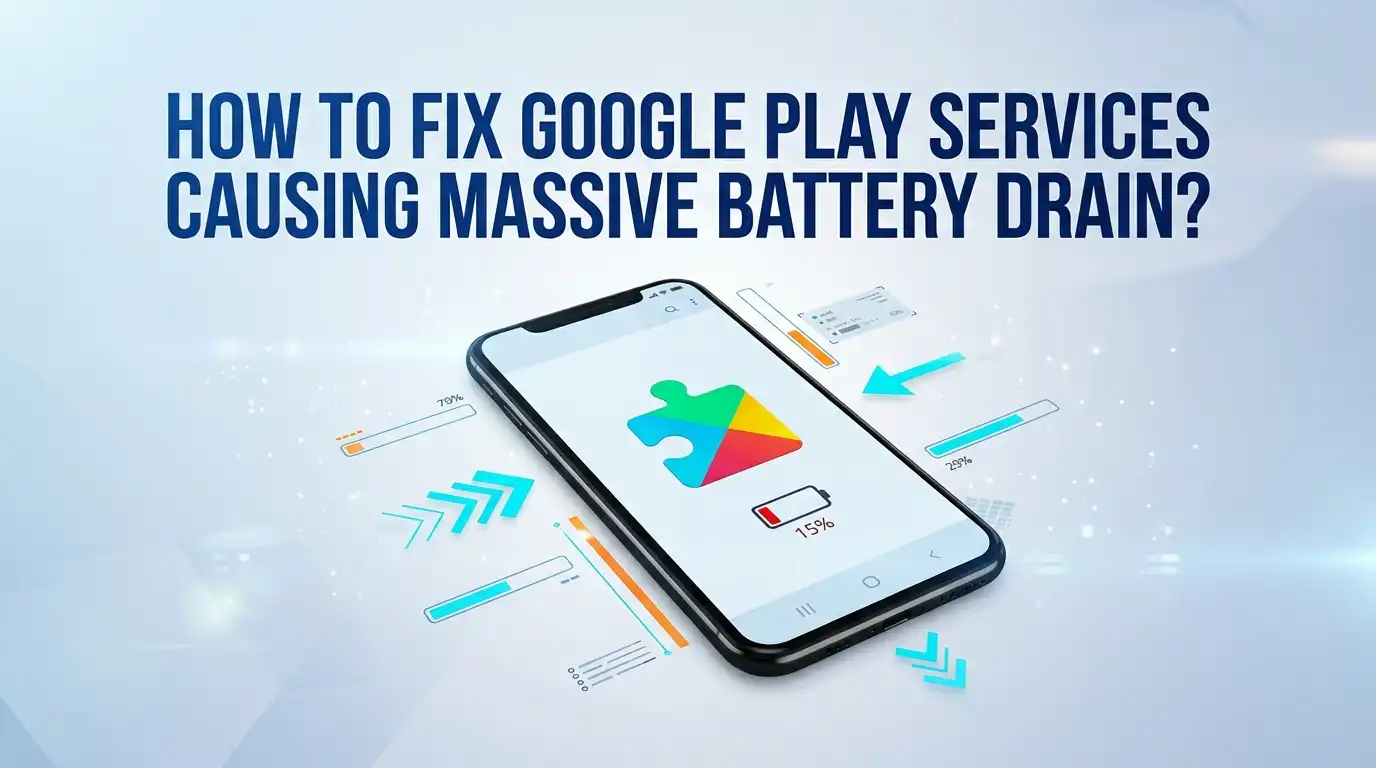
How To Fix Google Play Services Causing Massive Battery Drain?
Your phone battery dies fast. You check the battery menu. You see one name eating most of the power. It says Google Play Services. This feels confusing because you never open that app yourself.
Google Play Services runs quietly in the background. It connects your apps to Google features like sign in, maps, location, and sync. Most of the time it behaves well.
But sometimes it gets stuck. When it gets stuck, it polls your location again and again. It tries to sync data over and over. Your battery pays the price.
In a Nutshell:
- Google Play Services is not broken by design. It usually drains battery only when it gets stuck syncing data or when an app keeps requesting your location in the background.
- Start with the easy fixes. A simple restart and clearing the cache solve the problem for most people. Try these before anything drastic.
- Location is the biggest culprit. Constant GPS polling is the number one reason Play Services overheats your battery. Tightening location permissions often gives the biggest improvement.
- Uninstalling updates works but has a cost. Rolling back to the stock version can break connections with paired devices like smartwatches. Use this only when softer fixes fail.
- A misbehaving app is often the real problem. Play Services is sometimes just the messenger. A buggy third party app forces it to work nonstop, so finding that app matters.
- Order matters. Move from gentle steps to stronger ones. Stop as soon as your battery behaves normally again.
Why Google Play Services Drains Your Battery in the First Place
Google Play Services acts like a middleman. It sits between your apps and Google’s servers. It handles your phone sensors, your radios like Bluetooth and GPS, account sync, and push notifications. This makes it one of the busiest parts of your phone.
The drain starts when this middleman gets stuck in a loop. It may keep asking for your location every few seconds. It may try to sync an account that fails again and again. A single bad app can trigger this behavior, because that app keeps poking Play Services for data.
Understanding this helps you stay calm. The service itself is rarely the villain. Something is making it work too hard. Your job is to find that trigger and stop it. The steps below help you do exactly that.
Step 1: Restart Your Phone First
This sounds too simple to work. It often works anyway. A restart clears the temporary processes that got stuck. It forces Google Play Services to start fresh. Many battery loops break the moment your phone powers back on.
Press and hold the power button. Tap Restart instead of power off. Wait for your phone to fully boot. Then use it normally for a few hours and check the battery menu again.
Pros: It takes under a minute. It carries zero risk. It needs no settings knowledge. It often fixes a temporary glitch instantly.
Cons: The fix may be short lived. If a deeper problem exists, the drain returns within a day. A restart treats the symptom, not always the cause. Still, you should always try this first before harder steps.
Step 2: Clear the Google Play Services Cache
The cache holds temporary files. These files sometimes get corrupted. Corrupted cache makes Play Services misbehave and burn battery. Clearing it gives the service a clean slate without deleting your important data.
Open Settings, then tap Apps. Tap the three dot menu and choose Show system apps. Find and tap Google Play Services. Tap Storage, then tap Clear Cache. Do not tap Clear Data yet. Restart your phone afterward.
Pros: This is safe and fast. It keeps your accounts and passwords intact. It fixes most cache related drain issues. It is the single best starting fix after a restart.
Cons: It only helps if the cache was the problem. If the drain comes from location or a bad app, the cache fix alone will not be enough. You may need to continue to the next steps.
Step 3: Fix Location and GPS Permissions
Location is the biggest battery drain trigger for Play Services. The service polls your GPS to power features like geofencing and location history. When an app sets a geofence, Play Services can check your position every few seconds all day long.
Open Settings, then Location. Set the mode to Battery saving instead of High accuracy if your phone offers it. Next, go to Settings, Apps, then check which apps have Allow all the time location access. Change them to Allow only while using the app.
Pros: This often delivers the biggest battery improvement. It stops constant GPS polling. You keep full app function while cutting background drain.
Cons: Some features may slow down. Find My Device and certain location reminders may react less quickly. You trade a little convenience for much better battery life.
Step 4: Turn Off Google Location History and Accuracy
Google Location Accuracy uses Wi Fi, mobile networks, and sensors to improve your position. This extra precision costs battery. Location History records where you go. Both keep Play Services active in the background more often than you might expect.
Open Settings, then Location. Tap Location Services or Google Location Accuracy and toggle it off. Then visit Settings, Google, Manage your Google Account, and pause Location History under Data and Privacy.
Pros: This reduces background location work directly. It improves your privacy at the same time. Battery life often climbs noticeably over the next day.
Cons: Your location pin may be slightly less accurate in maps. Timeline and location based reminders stop working. If you rely on these features daily, weigh the tradeoff before turning them off completely.
Step 5: Update Google Play Services to the Latest Version
An outdated version can carry bugs. Some of these bugs cause runaway battery use. Google fixes these problems in newer releases. Keeping the service current removes known issues that other users already reported.
Open Settings, tap your profile picture, then go to All services. Under Privacy and Security, tap System services, then Google Play services. Tap Update or Install if the option appears. You can also update through the Play Store by searching for the service.
Pros: Updates are free and official. They patch known battery bugs. Staying current also keeps your apps stable and secure. This is a low risk move with real upside.
Cons: Sometimes a brand new update introduces a fresh bug. If your drain started right after an update, the next step about rolling back may help you more.
Step 6: Uninstall Google Play Services Updates (Roll Back)
Sometimes a recent update or a beta version causes the trouble. Rolling back to the stock version often fixes it. This is a stronger fix, so try the softer steps first. Many users report their green GPS indicator stops staying on after this.
Open Settings, Apps, then find Google Play Services under system apps. Tap the three dot menu and choose Uninstall updates. Confirm the action. Restart your phone, then let it reinstall the official stable version when prompted.
Pros: This removes a buggy or beta build instantly. It often stops constant GPS usage right away. Battery life can improve dramatically.
Cons: This can break paired devices. A smartwatch may refuse to reconnect and might need a full reset. You may need to sign in again. Save backups before you try this.
Step 7: Set Battery Optimization for Google Play Services
Android has a feature called Doze. Doze puts apps into a light sleep when your phone sits unused. You can apply optimization to Play Services so it sleeps more often in the background. This caps how aggressively it runs when you are not using the phone.
Open Settings, then Battery. Tap Battery optimization or Background usage limits. Find Google Play Services and set it to Optimize. On some phones you find this inside the app’s own battery settings page.
Pros: This limits background activity without disabling the service. You keep full function while cutting idle drain. It works well alongside the other fixes above.
Cons: Heavy optimization may delay some notifications. Sync and location alerts could arrive a little late. Most people never notice this, but light sleepers on email might.
Step 8: Find the App That Forces Play Services to Work
Play Services is often just the messenger. A buggy third party app keeps requesting location or sync, and Play Services does the heavy lifting. Fitness apps, weather apps, and social apps are common offenders. Finding that one app can solve everything.
Open Settings, then Battery usage or Battery details. Look at apps with high background activity. Note which ones request location all the time. Update those apps, clear their cache, or uninstall the worst one to test.
Pros: This fixes the root cause, not just the symptom. Once you remove the trigger, Play Services calms down on its own. Your fix becomes permanent rather than temporary.
Cons: It takes detective work and patience. You may need to remove apps one by one to find the culprit. The process can feel slow, but the payoff is worth it.
Step 9: Boot Into Safe Mode to Test
Safe Mode loads your phone with only the built in apps. Your downloaded apps stay disabled. If the battery drain disappears in Safe Mode, you know a downloaded app caused it. This is a powerful test that confirms whether the problem is yours or the system’s.
Press and hold the power button. Then press and hold Power off on screen until you see the Safe Mode prompt. Tap to confirm. Use the phone for a while and watch the battery. Restart normally to exit.
Pros: This isolates the cause with certainty. It needs no special tools. It quickly tells you whether to blame an app or the system itself.
Cons: It is a diagnostic step, not a permanent fix. You still must find the bad app afterward. Your downloads stay unavailable while you test, which can feel limiting.
Step 10: Re Sync Your Google Account
A failed account sync makes Play Services retry endlessly. Each retry drains power. Removing the account and adding it back forces a clean sync. This breaks the failed loop that keeps the service awake.
Open Settings, then Accounts or Passwords and accounts. Tap your Google account. Tap Remove account. Restart your phone. Then add the same account back and let it sync fully on Wi Fi.
Pros: This clears stuck sync loops fast. It refreshes the connection between your phone and Google. It often fixes mystery drain that no other step explains.
Cons: You must sign in again with your password. Two factor codes may be needed. Some app data resyncs from scratch, which uses a little data the first time. Use Wi Fi to avoid extra charges.
Step 11: Clear Google Play Services Data as a Last Resort
This is stronger than clearing cache. Clearing data resets the service completely. Use it only after the gentler steps fail. It can delete saved passwords, transit cards, and Google Pay payment cards from your device, so prepare before you act.
Open Settings, Apps, show system apps, then Google Play Services. Tap Storage, then Clear storage or Clear Data. Confirm and restart your phone. Re add your payment methods and sign in again afterward.
Pros: This wipes deep corruption that cache clearing misses. It gives the service a total fresh start. It often works when nothing else does.
Cons: You lose saved payment cards and may need to reauthenticate everywhere. This is not a first choice. Treat it as the final option before considering a factory reset.
Step 12: Factory Reset (Only If Nothing Else Works)
A factory reset wipes your phone back to its original state. This is the nuclear option. It fixes deep software corruption that survives every other step. Only use it after you exhaust the entire list above and back up your data first.
Back up your photos, contacts, and files to the cloud. Open Settings, then System, then Reset options. Tap Erase all data and confirm. Set up your phone fresh and reinstall apps slowly to watch for the drain returning.
Pros: It clears every possible software cause at once. Your phone feels brand new and fast. The battery drain almost always disappears after this.
Cons: You lose everything not backed up. Setup takes time. If you reinstall the bad app again, the drain can come back. Save this for true emergencies only.
How to Confirm the Fix Actually Worked
Do not assume the problem is gone after one fix. Test it properly. Open Settings, then Battery, and watch how Play Services ranks over a full day. A healthy phone shows it using only a small slice of power.
Compare the numbers before and after each change. Note whether the green GPS dot still stays on when no app uses location. That dot should appear only during active use. If it stays on all the time, location is still your problem.
Give each fix at least one full day. Battery stats update slowly. Patience prevents you from jumping to harsher steps too soon. Once Play Services drops out of the top battery users, you know your fix worked and you can stop.
Frequently Asked Questions
Is it safe to clear Google Play Services data?
Yes, but with caution. Clearing the cache is completely safe. Clearing data is stronger and can delete saved passwords and payment cards. Always try the cache option first. Use the data option only as a near final step.
Can I uninstall Google Play Services completely?
No, you cannot fully uninstall it. It is a core part of Android. You can only uninstall its updates to roll it back to the stock version. That alone often fixes battery drain caused by a buggy build.
Does Google Play Services really cause battery drain?
Google states it should not drain battery on its own. In practice, it can drain power when it gets stuck syncing or when an app forces constant location polling. The drain usually points to a deeper trigger, not the service itself.
Why does Google Play Services use my location so much?
Apps request your location through Play Services. Features like geofencing make it check your position every few seconds. Tightening location permissions to while using the app only usually stops this constant polling and saves a lot of battery.
Will turning off Location History hurt my phone?
No, your phone works fine without it. You only lose your Timeline and some location based reminders. Maps and navigation still work normally. Many users turn it off for better battery life and stronger privacy.
How long until I see better battery life?
Give it one full day per fix. Battery stats update slowly and need a full charge cycle to settle. If Play Services drops out of the top battery users within a day, your fix worked.

Hi, my name is Lily you can say i am a gadget hunter at this point. Welcome to Gadget Gallery The Gallery of Gadget Reviews