Logitech MX Vertical Review 2026: Is This Mouse Worth It?
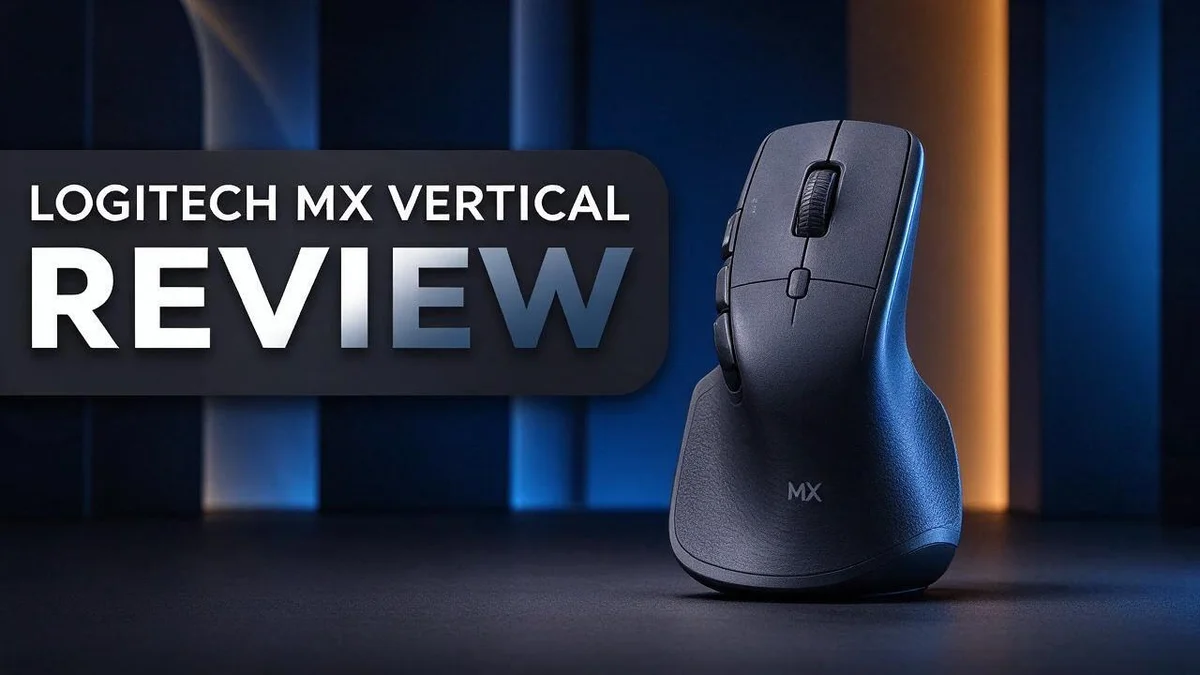
If your wrist aches after a long day at the desk, you are not alone. Many people spend hours with their hands twisted over a flat mouse. The Logitech MX Vertical takes a different approach. It keeps your hand in a natural handshake position.
Its tilted shape sits at a 57 degree angle. This angle can ease wrist pressure and muscle strain. Many reviewers say their hands feel less tired after a few days of use. Some users also report relief from wrist numbness. Still, it is not a perfect fit for everyone.
Is this mouse right for you? This guide breaks down the key specs, the real pros and cons, and how it compares to other options. You will also learn who should skip it.
In a Nutshell
- Four programmable buttons: You can assign custom actions to each button. This setup helps you speed up daily tasks on your computer.
- Precise optical tracking: The sensor reaches 4000 DPI for smooth movement. A cursor speed switch on the body lets you change sensitivity in seconds.
- Wireless freedom: You connect without a cable. Your desk stays clear, and you can move the mouse more freely.
- Textured grip surface: The textured top keeps your palm steady during long work sessions. Many users find it easy to hold for hours.
- Short adjustment period: Your hand needs a few days to get used to the new shape. After that, most people notice less hand fatigue during long workdays.
- Weight and size considerations: At 135 g, this mouse feels heavier than standard models. Travelers, gamers, and people with large hands may prefer a different option.
Ergonomic Design and Hand Grip


Last update on 2026-10-21 / Affiliate links / Images from Amazon Product Advertising API Some of the links on this website are affiliate links, which means that at no additional cost to you, I earn a commission if you click through and make a purchase. I only recommend products and services that I believe will add value to my readers. Thank you for your support!
Your hand rests in a natural shape on this mouse. Instead of lying flat, your palm turns to meet the device. That simple change can ease tension in your forearm.
The body fills your palm with a firm, supportive curve. Your fingers rest lightly on the top buttons. Few people feel any need to grip tightly.
Thumb placement matters a lot. The thumb rests on a raised area on the left side, so it stays relaxed while you click and scroll.
Hand size plays a key role in comfort. Medium hands usually fit well. Very large hands may find the grip too short, while small hands may need extra time to settle.
Edges deserve a closer look. Some reviewers say the sides feel more pronounced than expected. Try holding one first if you can, so you know how the edges feel against your fingers.
Your desk setup changes the feel. Place the mouse close to your keyboard. Keep your elbow near your side. This helps your shoulder stay relaxed through long workdays.
Use it for a few hours at first. Then extend the time as your comfort grows. Small daily steps make the shape feel normal sooner.
Grip style also matters. People who use a palm grip often adapt fastest. Claw grip users may feel the shape pushes their fingers in a new direction. Fingertip grip users might find less control at first.
Consider how you hold the mouse all day. Short bursts of clicking feel different from long reading sessions. Pick the setup that matches your daily habits.
Comfort often improves with small changes. Adjust your chair height so your wrist stays level. Keep your screen at eye level for a calmer posture overall.
Give your hand time to learn the shape. Most people notice a clear difference after a week of regular use.
Tracking and Sensor Performance
When you move a mouse, the sensor reads every small shift beneath it. The Logitech MX Vertical relies on an optical sensor to handle this job.
Steady tracking matters most during detailed work. Think about editing photos, dragging small icons, or selecting text one letter at a time.
The mouse also includes a cursor speed switch. This small control changes how far the pointer travels with each motion. A slower setting helps with precise editing, while a faster setting helps you cross wide screens quickly.
Many people with large monitors appreciate this flexibility. A quick switch saves you from digging into system settings every time your task changes.
Your desk surface also affects tracking. Most optical sensors perform best on matte surfaces. Glossy or transparent surfaces can confuse the sensor and cause the pointer to drift.
A plain mouse pad often solves this problem. Pick one with a matte finish so the sensor has a clear surface to read.
Arm movement changes too. The vertical shape encourages motion from the forearm, so larger strokes can feel more natural than small wrist flicks.
Precision takes practice. Your muscle memory needs a few sessions to match the new angle. Most people find the cursor becomes predictable after a short adjustment period.
Test the mouse in your own setup. Draw small circles and long straight lines across the screen. Notice whether the pointer stops where you expect it to.
This quick check shows how well the sensor fits your habits. If the cursor feels jumpy, try a different surface before making a final decision.
Higher sensitivity covers large screens with fewer hand movements. Lower sensitivity suits detailed design work. Good tracking should feel effortless after a short period of daily use.
Button Setup and Customization
Setting up the buttons takes only a few minutes. Start by deciding which tasks slow you down most. Write them down before you open any software.
Most people map the back and forward buttons first. These keys help you move through web pages and folders without reaching for the keyboard.
Think about your daily habits. A designer may want a shortcut for undo. A writer may prefer a button that copies text or opens a new tab.
Good button choices save clicks over time. Small savings add up across a full workday. Each action should feel natural to your hand.
The side buttons sit near your resting thumb. This means you can press them without shifting your grip. Place the most common actions there.
Avoid crowding every button with complex macros. Simple single actions are easier to remember. Complex shortcuts can confuse you during busy moments.
Test your setup for a week. Notice which buttons you ignore. Swap those actions for something you actually use.
Different apps can also use different profiles. Some software lets you change button actions for each program. This feature helps when you switch between browsers, spreadsheets, and design tools.
Keep a note of your final layout. Reset options exist if you change your mind.
Check your layout after each change. Open a document and press every button once. This quick test shows whether each action works as planned.
Some people prefer one button for copy and another for paste. Others choose a button that opens the app launcher. Your work style decides the best mix.
Keep the first setup simple. You can always add more actions later. Starting small makes it easier to spot what helps most.
Share your layout with family members who use the same mouse. They can copy your ideas and adjust them for their own tasks.
Top 3 Alternatives
A vertical mouse can ease wrist strain for many people. Here are three strong alternatives worth a look.
Logitech Lift

Last update on 2026-11-06 / Affiliate links / Images from Amazon Product Advertising API Some of the links on this website are affiliate links, which means that at no additional cost to you, I earn a commission if you click through and make a purchase. I only recommend products and services that I believe will add value to my readers. Thank you for your support!
The Logitech Lift is a compact vertical mouse built for comfort. Its sculpted shape keeps your hand in a relaxed handshake position. Smaller hands often find it a great fit. It works on most surfaces, including glass. You can connect it through Bluetooth or a small USB receiver, so setup stays quick.
Evoluent VerticalMouse 4

Last update on 2026-10-21 / Affiliate links / Images from Amazon Product Advertising API Some of the links on this website are affiliate links, which means that at no additional cost to you, I earn a commission if you click through and make a purchase. I only recommend products and services that I believe will add value to my readers. Thank you for your support!
The Evoluent VerticalMouse 4 suits people with larger hands. Its full-size body gives your palm plenty of support during long workdays. The buttons can be programmed, so you can set shortcuts for daily tasks. Its angled grip reduces forearm twisting. Many users notice less wrist fatigue after a few weeks.
Anker Vertical Mouse

Last update on 2026-10-21 / Affiliate links / Images from Amazon Product Advertising API Some of the links on this website are affiliate links, which means that at no additional cost to you, I earn a commission if you click through and make a purchase. I only recommend products and services that I believe will add value to my readers. Thank you for your support!
The Anker Vertical Mouse is a simple choice for everyday computer use. It offers a plug and play setup, so you can start working right away. Its soft, rounded grip helps your hand rest without strain. It is a good pick for anyone new to vertical mice. Light movement makes it easy to control the cursor.
Adjustment Period and Learning Curve
Your hand sits in a tilted position that feels different from a flat mouse. Most people need a few days to adjust. This learning curve is normal, so do not judge the mouse too quickly.
During the first days, your wrist may feel unusual. Your forearm also works in a new way.
Expect some awkward moments. Clicks may feel off, and the pointer may overshoot targets. This feels normal early on.
Many people feel lukewarm on day one but warmer after a week. Your first impression may change later.
Many reviewers say the discomfort fades. After the adjustment period, less hand fatigue becomes noticeable.
Some users also report relief from wrist numbness. This benefit often shows up after weeks of steady use.
Watch for tension in your shoulders during the first days. Relax your neck and jaw whenever you notice stiffness. Small breaks reset your posture.
Stretch breaks help too. Stand up every hour and shake out your hand. Movement can ease early soreness.
Some people keep their old mouse nearby as a backup. Switching back and forth often makes the new shape harder to learn.
Track how you feel each day. A short note about wrist comfort helps you spot real progress.
Not everyone adapts smoothly. One reviewer found the mouse less comfortable, with more pronounced edges.
If discomfort lasts beyond two weeks, the shape may not suit your hand.
Short work sessions can slow your progress. Longer daily use helps your hand settle into the new position faster.
Judge the mouse only after a full working week. That timeframe gives your hand enough chance to adapt.
Plan for the adjustment in your schedule. Avoid starting with the mouse on a deadline day. Easing in works best.
Overall, patience pays off. The learning curve feels bumpy at first, yet many people end up comfortable with it.
Weight, Size and Portability
The Logitech MX Vertical feels heavier than most desk mice. It weighs 135 g, so you notice the weight as soon as you lift it. This solid feel can help you keep steady control on the desk.
Weight shapes how a mouse feels over a full workday. A heavier body suits slow, careful movements. Some people prefer a lighter shape that glides with less effort during quick tasks.
Lifting and repositioning the mouse takes more effort than with a light model. Many people choose to slide it across the pad instead of picking it up. This habit keeps the weight manageable over time.
Size works hand in hand with weight. The tall, upright body fills more of your palm than a flat mouse does. People with small hands may feel the grip stretch a little. Medium hands often settle in faster.
Portability is where this mouse struggles most. The shape does not slide easily into a laptop bag or small pocket. Carrying it on trips adds bulk to your pack.
Many travelers keep a smaller mouse for the road. They save this model for a home or office desk. A fixed workstation gives the mouse a stable home and keeps your setup consistent.
Gaming needs quick flicks and light moves. The extra weight can slow those fast motions down. Players who value speed often choose a different shape.
Desk space matters too. Keep a clear patch on your mouse pad so the mouse can rest without bumping other items. A tidy desk makes the mouse easier to reach and easier to use every day.
Think about where you work most. A desk-based routine suits this mouse well. If you move between cafes, trains, and hotels often, a lighter option may serve you better. Your daily location matters more than any single spec.
Pros and Cons
Pros
- The textured surface gives your hand a secure grip.
- The cursor speed switch lets you change pace on the fly.
- Four custom-programmable buttons fit many daily tasks.
- The sensor tracks smoothly across most desk surfaces.
- Reviewers often praise the natural handshake position.
Cons
- The edges can feel more pronounced to some users.
- Large hands may feel cramped on the shell.
- The shape may not suit every grip style.
- People who prefer a flat mouse may need extra time to switch.
Who Should Buy It
The Logitech MX Vertical suits people who sit at a desk for most of the day. Office workers, writers, and analysts often spend hours with one hand on the mouse.
Anyone who feels soreness after long workdays should take a close look. The upright grip may ease strain on the forearm over time. Daily use gives the shape a fair test.
Remote workers who run video calls can benefit too. Hours of meetings and email keep the hand busy. A relaxed shape helps the wrist rest between tasks.
Typists who work with a keyboard all day can pair this mouse with a comfortable keyboard. Keeping both devices close helps the arms stay in a natural position.
Students who study at a desk can also find it useful. Essay sessions and online classes involve constant clicking and scrolling. A gentler grip makes long study blocks easier on the hand.
Shoppers who want instant comfort may feel let down. This model rewards patience. Those who give it a fair trial will see the best results.
Users who work in short bursts may notice less difference. A quick browse or occasional click does not test the design much. Heavy daily use shows its real strengths.
Teams that share a computer setup should test the feel first. Every person has a different hand size and grip style. A short trial helps everyone decide what works best.
Think about your daily routine first. If your desk stays your main workspace, this mouse deserves a spot on your shortlist. Its shape fits steady office work well.
Final Verdict
The Logitech MX Vertical is a strong pick for desk workers. It helps people who want relief from daily wrist strain. Think of it as a long term choice for your hand health.
Give it a fair trial before you judge it. Most people need a few days to adjust to the shape. Test it during full workdays, not just a quick check.
Your desk setup matters just as much as the mouse. Keep your elbow close to your side and your wrist relaxed. A good chair and the right monitor height help the mouse do its job.
Try it for one full week. Note how your hand feels at the end of each day. That simple log shows whether the design fits your body.
Compare it with other vertical options first. The Logitech Ergo M575S suits people who want a simpler model. The MX Ergo S offers a similar feel in a different package. The Logitech Lift fits smaller hands more comfortably.
Other choices include the Razer Pro Click and the Kensington Vertical Ergonomic. Each one brings a different shape and feel. Read a few hands on reviews before you decide.
Pick the MX Vertical when comfort matters most. If you click and scroll for hours each day, it earns its place. Many users with wrist numbness report relief after the adjustment period.
Skip this mouse if your needs change often. Mixed tasks across different spaces may call for a lighter tool. Match the mouse to your real work habits.
Track your results honestly. Small aches can fade within a few weeks. Persistent pain should prompt a visit to a health professional.
Final thought: The MX Vertical rewards patience. It asks for a short adjustment and then gives back daily comfort. For most desk workers, that trade feels worth it.
Frequently Asked Questions
Can I take the Logitech MX Vertical on trips?
It is not the best pick for travel. The shape suits a desk better than a backpack. Keep a lighter mouse in your bag for trips and use this one at your workspace.
Is the Logitech MX Vertical good for gaming?
No, gamers should look elsewhere. This mouse is built for steady daily work, not fast play. Save your gaming mouse for play sessions.
Will the weight feel like a problem?
The mouse weighs 135 g, so it feels heavier than many standard mice. Some people like the solid feel. Others may find the extra weight tiring during long sessions. Hold one in a store if you can before you commit.
Can it help with wrist numbness?
Some users report relief from wrist numbness after a few days of use. Results vary from person to person. It is not a medical treatment, so see a doctor if numbness keeps coming back.
Are there other models to compare?
The Logitech Lift and the Logitech MX Ergo S are worth a look. Compare the size, shape, and weight of each option. Choose the model that feels most natural in your hand.

Hi, my name is Lily you can say i am a gadget hunter at this point. Welcome to Gadget Gallery The Gallery of Gadget Reviews