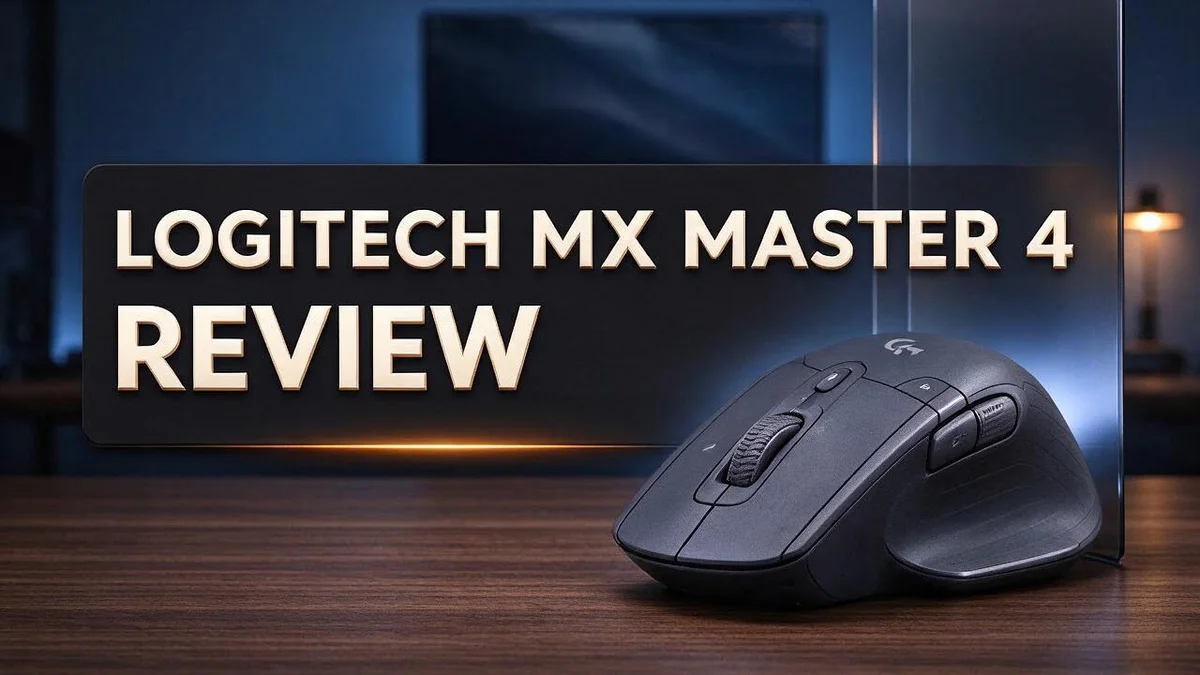
Logitech MX Master 4 Review: In-Depth Breakdown
Are you tired of a mouse that cramps your hand after a long workday? The Logitech MX Master 4 aims to fix that problem. It brings a fresh take on comfort for people who spend hours at their desks.
Your hand deserves better support. This mouse offers a shape that many users find easy to hold. Its precise build feels solid, and one reviewer even gave the build quality a perfect score.
Speed matters too. With a maximum DPI of 8,000, the mouse tracks movement with great accuracy. The haptic engine adds a nice touch, giving you feedback that feels surprisingly premium.
Is it the right pick for you? In this review, we explore the design, performance, and daily comfort. We also cover the downsides, like its weight and the stock skates. Let us dive in.
In a Nutshell
- Weight matters: At about 150 g, or 5.2 oz, the mouse feels solid in your hand. Some users still find it heavy during long sessions.
- Build quality stands out: The assembly feels precise and solid from the first touch. One reviewer gave the build quality a perfect score of 10.
- Haptic feedback adds polish: The haptic engine feels excellent under your fingers. It makes the mouse feel more refined than many rivals.
- Sensitivity for precise control: The sensor reaches 8,000 DPI. This helps with detailed editing and smooth movement across large or high resolution screens.
- Downsides to know: The mouse has no onboard memory, so settings stay on your computer. Its 125 Hz USB port works for charging only. The stock skates feel average, so some owners replace them.
- Other options to compare: Shoppers often look at the MX Master 3S, the MX Vertical, and the MX Lift. Vertical alternatives include Razer, Keychron, Trust, CSL, and Delux.
Bottom line: The MX Master 4 suits people who want precision, polish, and a comfortable grip for daily work.
Design, Build and Ergonomics

Last update on 2026-10-13 / Affiliate links / Images from Amazon Product Advertising API Some of the links on this website are affiliate links, which means that at no additional cost to you, I earn a commission if you click through and make a purchase. I only recommend products and services that I believe will add value to my readers. Thank you for your support!
The shape of this mouse is the first thing you notice. It rises high under the palm and curves in a gentle arc.
Your hand rests in a relaxed position. Many people find this helps during long days at the desk. Less strain on the fingers can make a real difference.
Thumb placement matters too. The thumb sits on a raised shelf, so it does not stretch or drag. Your fingers stay free to click and scroll.
The side panel carries most of the grip work. Your pinky and ring finger rest against a flat, textured area. This keeps the mouse steady without forcing a tight squeeze.
The surface feels grippy without feeling sticky. Your hand stays in place even when you move quickly.
Hand size changes the experience. Larger hands often find the wide body supportive. Smaller hands may need a few days to get used to the height.
Unlike vertical mice, this design keeps the hand in a more traditional position. This suits people who want to stay close to a familiar feel.
The bottom skates are a weak spot. Many reviewers consider them average. A good mouse pad can help the movement feel smoother on your desk.
The weight shows up over time. A heavier body can tire the hand during marathon sessions. Taking short breaks helps your wrist recover.
Left handed shoppers should check fit first. The shape is built for right hands. Try it in person if you can.
Test the grip before you decide. Hold the mouse for a few minutes. Your hand will tell you if it fits.
Sensor Precision and Tracking Performance
Sensor precision shapes how a mouse feels with every small move. The MX Master 4 reads motion closely, so the cursor follows your hand. Designers and video editors often notice this first.
Tracking matters most on tricky surfaces. Glass desks, dark wood, and soft mouse pads can confuse weaker sensors. Many users report steady tracking on common desk surfaces. The pointer stays put instead of jumping mid-task.
Speed and control can work together. A high top sensitivity helps you cross wide monitors with fewer swipes. Lower settings then help you place the pointer with care. Moving between the two feels natural for most people.
Fine detail work depends on smooth, small movements. Selecting a single layer or tracing a curve shows whether the cursor stays calm at slow speeds. Jittery motion makes these tasks harder than they should be.
Pointer acceleration can throw off your aim. Speed changes based on how fast you move, which makes muscle memory harder to build. Turn it off in your system settings for a steady, predictable response.
Predictable tracking also reduces correction. When the cursor lands where you expect, you spend less time nudging it back. Many people feel less effort during long sessions because of this.
Test before you commit. Tracking and lift-off behavior depend on your desk and pad. Spend a few minutes moving across your usual surface before you decide. Your own workspace offers the best test.
Sensor performance shapes daily work more than most specs suggest. Smooth, accurate tracking removes small frustrations across long hours. Good control keeps your focus on the task, not on the mouse.
Haptic Feedback and Scroll Experience
Touch feedback can change how you work. Many people rely on their sense of touch more than they realize. A well tuned haptic response lets you confirm actions without staring at the screen.
Your hand learns the rhythm of the mouse. Each small vibration becomes a quiet signal. Over time, this helps you move faster with fewer mistakes.
The scroll experience matters just as much. Long documents, websites, and spreadsheets demand constant scrolling. A smooth wheel keeps your eyes on the content instead of the controls.
Scrolling feels steady and controlled. Short flicks move a small distance. Longer spins carry you through pages with ease. This balance suits both quick browsing and careful reading.
Click feel adds another layer. Buttons respond with a clear, firm feel. Many users find this reassuring during fast clicking sessions.
Feedback during scrolling helps too. Subtle tactile cues let you feel where you are in a long list. You can count rows or pages without checking the scroll bar.
Think about how often you scroll each day. Small improvements add up over hours of work. A mouse that feels responsive can reduce fatigue in your fingers and wrist. Over a full workday, those little moments add up to real comfort.
Consistent feedback helps your brain predict results. When every action feels the same, you trust the tool more.
Feedback also supports multitasking. You can focus on your work while your fingers handle the controls. Less visual checking means fewer interruptions.
Use it in real tasks. Spend time with spreadsheets, long articles, and image libraries. Notice whether the pulses feel natural or distracting. Your own preference matters most.
Most people adjust within a few days. Once the rhythm feels familiar, the mouse fades into the background. That quiet comfort is the real goal.
Top 3 Alternatives
Logitech MX Anywhere 3S


Last update on 2026-11-06 / Affiliate links / Images from Amazon Product Advertising API Some of the links on this website are affiliate links, which means that at no additional cost to you, I earn a commission if you click through and make a purchase. I only recommend products and services that I believe will add value to my readers. Thank you for your support!
This mouse is small and light. It fits well in a backpack or laptop bag.
You can use it on glass surfaces, so it works almost anywhere. Its tiny size makes it a smart choice for travel. It also connects to up to three devices, and you can switch between them with one button press.
Razer Pro Click

Last update on 2026-10-21 / Affiliate links / Images from Amazon Product Advertising API Some of the links on this website are affiliate links, which means that at no additional cost to you, I earn a commission if you click through and make a purchase. I only recommend products and services that I believe will add value to my readers. Thank you for your support!
This mouse has a comfortable shape for bigger hands. It offers a strong grip and a solid feel.
The side buttons are easy to reach with your thumb. The scroll wheel can switch between a fast mode and a precise mode. Gamers and creators often pick this mouse for its quick response. The grip stays steady during long work sessions.
Microsoft Surface Precision Mouse

Last update on 2026-11-06 / Affiliate links / Images from Amazon Product Advertising API Some of the links on this website are affiliate links, which means that at no additional cost to you, I earn a commission if you click through and make a purchase. I only recommend products and services that I believe will add value to my readers. Thank you for your support!
This mouse feels smooth and simple to use. It has a small design that works for many hand sizes.
Its scroll wheel clicks with a soft, steady motion. You can pair it with Windows and macOS devices. It also has a rechargeable battery that lasts for weeks. Its sleek look fits well on any desk.
Battery, Charging and Connectivity
Charging this mouse is simple. You connect a cable to the USB port and let the battery fill up.
The USB port handles charging only. Its 125 Hz rate means it does not work as a data connection. Plan to use wireless mode for your daily work.
Keep the charging cable within reach of your desk. A quick charge during lunch or a coffee break keeps the mouse ready for the afternoon.
Wireless use is the main way to work. Your hand moves freely across the desk. Nothing tugs at the cable while you work.
Connectivity choices come next. Check what your computer supports before you set up the mouse. Pick the link that fits your setup and stick with it.
Multiple computers call for a closer look. If you switch between a laptop and a desktop, check whether the mouse can change devices. Smooth switching saves time during busy days.
Keep the connection close to your computer. Walls, metal objects, and crowded desks can weaken the signal. A clear path keeps the pointer responsive.
Charging habits matter more than you think. Plug in the mouse on a regular schedule so it never runs low during a big project. A simple habit removes surprises.
Heavy users may need to charge more often. Light users may go longer between charges. Your daily routine sets the pace.
Route the charging cable along the back of the desk. A tidy setup keeps the mouse steady and the workspace clear.
Set a reminder if you tend to forget. Many people miss a charge until the mouse is nearly empty. A short alert on your phone can prevent that.
Wrap up with one simple rule. Charge during breaks, keep the wireless link strong, and save the USB port for topping up.
Good habits make the mouse feel dependable. When the battery stays charged, you focus on your work instead of the hardware. That calm setup makes long days easier.
Software and Customization
Software plays a big role in how the MX Master 4 feels every day. Most of the fun starts after you install the companion app on your computer.
Your settings live on your computer. You can change them without touching the mouse itself.
Button mapping is the first thing most people explore. You can assign extra actions to the side buttons, the thumb controls, and the gesture button.
Copy, paste, screenshots, and app switching all work well as shortcuts. Pick the actions you use most often. Your hand will learn them fast.
Application profiles add another layer. The software can switch settings automatically when you open a certain program. A photo editor might use slower pointer speed. A spreadsheet might use faster scrolling.
This means one mouse can feel like several different tools.
Sensitivity adjustments let you tune the pointer to your desk and screen size. Small changes often make a big difference.
Move the slider in short steps. Then test your work for a day. Your body needs time to adapt to new settings.
Gesture controls can add more speed. Hold the gesture button, move the mouse in a direction, and release.
Each direction can trigger a different command. Start with two or three gestures so you do not forget them. Gestures also work well for switching desktops or closing windows.
Your settings follow your computer. If you move to a new machine, you reinstall the software and sign in again.
Some people like this because their setup stays easy to restore. Others prefer hardware memory that works anywhere. Think about which option suits your daily routine.
Keep the software updated too. Updates can add new features and fix bugs.
Check the settings page every few months. Remove any shortcuts you no longer use. A clean setup keeps your workflow smooth and simple.
Pros and Cons
Pros
– Build quality feels precise and solid in your hand.
– Comfort suits long days of desk work.
– The haptic engine makes the mouse feel more premium.
– Up to 8,000 DPI gives you fine pointer control.
Cons
– The weight can feel heavy for light-mouse fans.
– Stock mouse feet feel average on smooth surfaces.
– No on-board memory means you need the software for setup.
Who Should Buy It
This mouse fits people who work at a desk for hours. Writers, designers, developers, and office staff often rest a hand on the mouse all day. A comfortable shape matters more than most people expect.
Your palm settles into a natural position, and your fingers reach the side buttons without stretching. That comfort helps during long sessions of editing, reading, or data entry.
Power users who rely on shortcuts gain the most. If you copy, paste, switch windows, and take screenshots every hour, the extra buttons save motion. Small time savings add up across a full workday.
People who work across several computers should also take a close look. They can use the mouse as a central control point. Test the setup with your own machines before you decide.
Creative professionals may enjoy the precise control. Photo editors, video editors, and CAD users often need steady pointer movement. Fine adjustments help them place tiny details exactly where they want.
Players who focus on fast action games may want something else. The design suits steady office work more than quick, sharp movements in games.
People with small hands may need to test it first. The body is large, so a comfortable grip depends on hand size. Try the mouse in a store or check the return policy before you buy.
Vertical mouse fans have other choices. Some people prefer a more upright hand position. The Logitech MX Vertical and Lift models offer that shape, and brands like Razer, Keychron, Trust, CSL, and Delux sell alternatives too.
Owners of the MX Master 3S should compare the two side by side. Hold both mice for a few minutes and notice how your hand responds. Your own feel tells you more than any spec sheet can.
The right choice depends on your daily routine. Think about how many hours you spend at the desk, how often you use shortcuts, and whether you switch between computers. Answer those questions honestly, and the decision becomes much clearer.
Final Verdict
Our final verdict is clear. The MX Master 4 is a strong choice for desk workers who want a refined daily tool.
It does not suit every person, though. Think about your grip before you buy.
Grip style matters most. Vertical mice can ease strain for people with sore wrists. If that describes you, look at the MX Vertical or MX Vertical Lift first.
Many shoppers also compare this mouse with vertical options from Razer, Keychron, Trust, CSL, and Delux. Those brands offer different shapes and sizes, so compare them side by side.
Upgrade choices need honest thinking. If you already own the MX Master 3S, the changes may feel small. Ask yourself whether the new features solve a real problem for you.
The wired port has one job. The 125 Hz USB port only charges the mouse. Do not expect fast wired performance from it.
Try it before you commit. Spend a week with the mouse on your desk. Notice whether your wrist and fingers stay relaxed by the afternoon.
Look at your desk space too. The mouse needs room to glide across a large pad. A cramped setup can make even a great mouse feel awkward.
Measure your hand before ordering online. A mouse that feels right in a store may feel different at home. Trying before buying saves frustration.
Think about long term use. A good mouse should last for years with proper care. Keep the surface clean and the sensor free from dust.
Our short answer. Buy the MX Master 4 if you want a premium feel and careful control. Choose a different style if lightness or a vertical grip matters most.
Final thought. This mouse earns its place on a busy desk. It rewards people who take time to set it up well.
In short, it earns a strong recommendation for focused desk work.
Frequently Asked Questions
Is the MX Master 4 a good gift?
It can be. A person who writes, designs, or codes all day will likely appreciate it. Check their desk setup first, though, so the gift fits their daily routine.
What hand size works best with this mouse?
Hold the mouse before you buy it if you can. Your palm should rest on the body without hanging off the back edge. People with smaller hands may need a few days to get used to the shape.
How do I set up the mouse on day one?
Install the Logitech software before you start working. Then assign your most-used shortcuts to the side buttons. Start with three actions you repeat all day. This small step makes the mouse feel useful right away.
Can two people share this mouse?
It works best for one main user. Each person may want different button settings. Save separate settings in the software so each person keeps their own shortcuts and pointer speed.

Hi, my name is Lily you can say i am a gadget hunter at this point. Welcome to Gadget Gallery The Gallery of Gadget Reviews